
Vendor Management lets you run your subcontractors and suppliers from the job instead of your inbox. You send bid requests (RFQs) straight from your estimate, award the best bid, send the purchase order, then review and pay the vendor's bill. Every step lands in the job budget, so you always know where the money is going.
Vendor Management, including paying vendors, is available in the US and Canada.
Where to find it
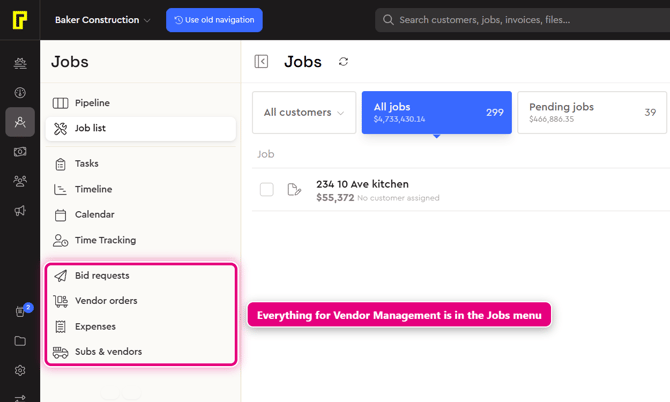
In the left menu, click Jobs. Hover over the left menu to see the labels. Jobs is just below Dashboard. The Jobs menu has four Vendor Management pages:
- Bid requests: send requests for quote (RFQs) to your vendors and compare the bids that come back against your budget.
- Vendor orders: every purchase order and work order across your jobs, with its status, for example Unsent, Awaiting approval, Approved or Paid.
- Expenses: opens the Bills & Expenses page, where you can see vendor bills and expenses and filter them by All, Paid, Unpaid and Submitted by vendors.
- Subs & vendors: your list of subcontractors and suppliers, including which ones are missing documents such as insurance or a licence.
You can also work from inside a job. Open the job, then use Bid requests, Vendor orders, Bills and expenses and Budget in the job menu on the left.
How it works, from bid request to paid
- Add your vendors. In Jobs › Subs & vendors, add your subcontractors and suppliers and request any missing insurance or licence documents. See Add vendors and request their documents.
- Request bids (RFQ). In Jobs › Bid requests, pick the job, choose the trades or items from your estimate that need pricing, choose your vendors, set a due date and send. Vendors get a link to price each item. See Send a bid request (RFQ) to your vendors.
- Compare and award. When bids come back, click Compare & award to see each vendor's price next to your budget, line by line, then click Award all. See Award a bid and create a purchase order.
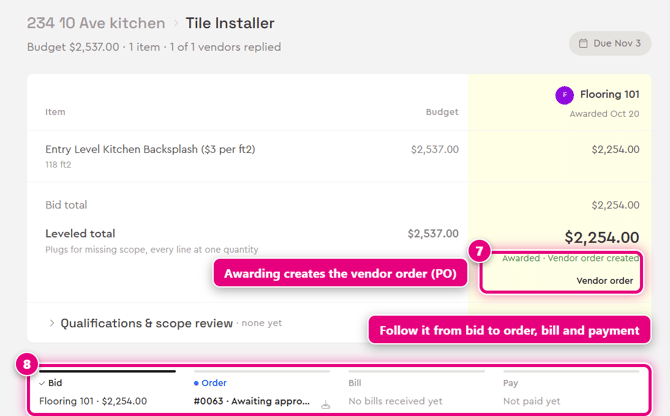
- Send the purchase order. Awarding a bid creates a vendor order (purchase order). Check it and click Save & send to send it to the vendor. The vendor accepts (approves) it. Until they do, it shows Awaiting approval. See Track your vendor orders.
- Review the bill. When the work is done, the vendor's invoice comes into Bolster. In Jobs › Expenses, click Unpaid, then Review. Check the invoice against the purchase order and click Accept.
- Pay the vendor. Pay the bill from Bolster Wallet, your built-in business account. The vendor is notified once the money lands. See Review and pay a vendor bill.
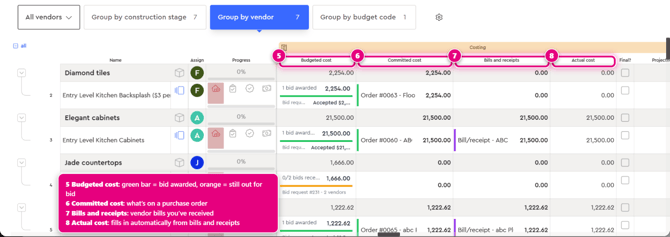
- Track it in the budget. Committed, billed and actual costs update in the job budget as you go. Open the job, click Budget, then click Group by vendor. See How vendor costs show up in your job budget.
Each awarded bid shows a tracker with four stages: Bid (the awarded vendor and amount), Order (the order number and its status), Bill (bills received) and Pay (payment status).
In the job budget, grouped by vendor, each line shows Budgeted cost, Committed cost (what's on a purchase order), Bills and receipts, Actual cost, Projected cost and Budget remaining.
Step-by-step guides
- Add vendors and request their documents: add subs and suppliers and request their insurance and licence documents.
- Send a bid request (RFQ) to your vendors: get trades priced from your estimate, set a due date, attach files and remind vendors.
- Award a bid and create a purchase order: compare bids against your budget, award the work and send the PO.
- Track your vendor orders: filter every order by vendor, job or status and take the next step.
- Review and pay a vendor bill: check the vendor's invoice against the PO, accept it and pay from Bolster Wallet.
- How vendor costs show up in your job budget: see budgeted, committed, actual, projected and remaining cost by vendor.
Learn more
- Vendor Management in Bolster: Send RFQ. Generate PO. Pay vendor.
- Construction Purchase Orders: A Contractor's Guide From RFQ to Paid