
Everything you do in Vendor Management flows into the job budget. Group the budget by vendor to see each sub and supplier's budgeted, committed and actual cost side by side, with what's left on every line.
Where to find it: open the job, then click Budget in the job menu.
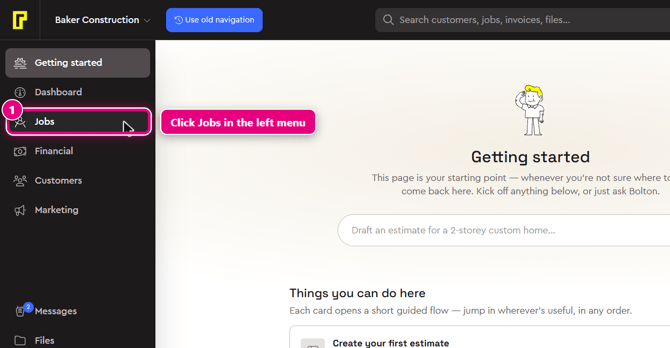
Step 1: In the left menu, click Jobs. Hover over the left menu to see the labels. Jobs is just below Dashboard.
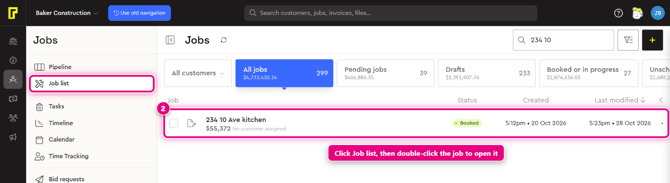
Step 2: In the Jobs menu, click Job list. Find the job (you can search by name or address) and double-click it to open it.
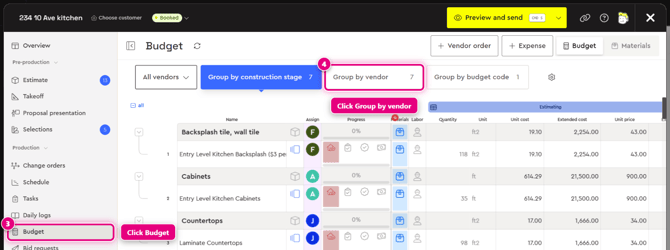
Step 3: In the job menu on the left, click Budget.
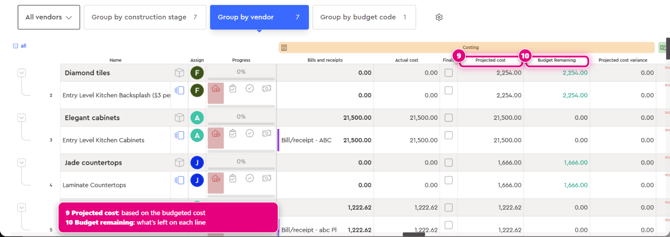
Step 4: At the top of the budget, click Group by vendor. You can also group by construction stage or budget code.
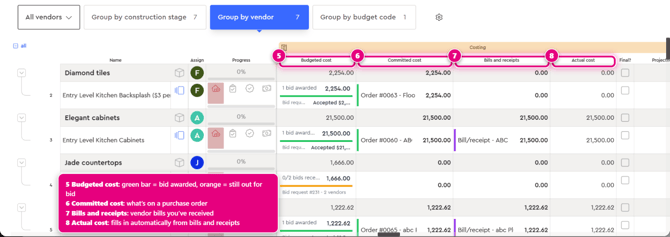
Step 5: Scroll the budget to the right to the Costing columns.
What the columns mean
- Budgeted cost: your budget for the line. A green bar means a bid has been awarded. An orange bar means it's still out for bid, and you can remind vendors to send their quote.
- Committed cost: what's on a purchase order. An item moves into committed cost once it's on an awarded PO.
- Bills and receipts: the vendor bills and receipts you've received.
- Actual cost: fills in automatically when a bill or receipt is received.
- Projected cost: based on the budgeted cost.
- Budget remaining: what's left on each line.
Tip: use + Vendor order or + Expense at the top of the budget to create an order or log an expense without leaving the job.
Related: Award a bid and create a purchase order and Review and pay a vendor bill.
Learn more
- Vendor Management in Bolster: Send RFQ. Generate PO. Pay vendor.
- Construction Purchase Orders: A Contractor's Guide From RFQ to Paid
- Vendor Management overview