
A bid request, or request for quote (RFQ), asks your vendors to price work on a job. In Bolster, bid requests start from your estimate, so there's no retyping quantities or scope. Vendors get a link to price each item, ask questions and attach files.
Each job's budget items are grouped by trade (for example, plumbing fixtures and rough-in land together under Plumbing), and you can add your own custom groupings.
Where to find it: Jobs › Bid requests.
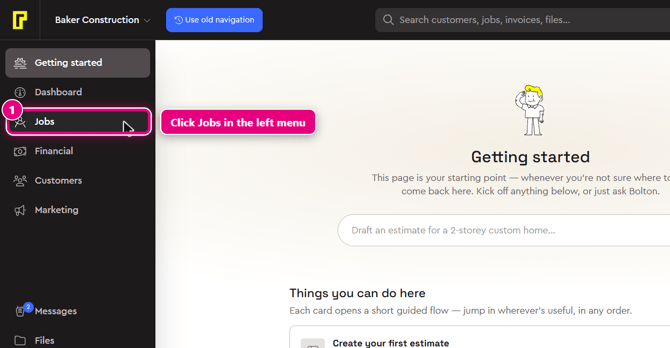
Step 1: In the left menu, click Jobs. Hover over the left menu to see the labels. Jobs is just below Dashboard.
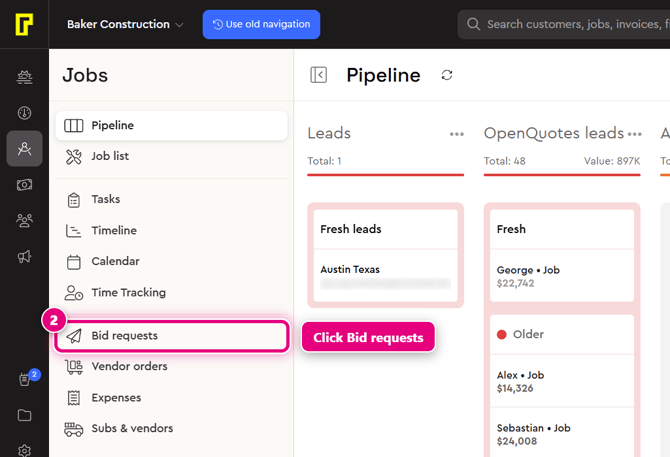
Step 2: In the Jobs menu, click Bid requests. Your jobs are listed on the left, grouped into All awarded, Out for bids and Needs bids.
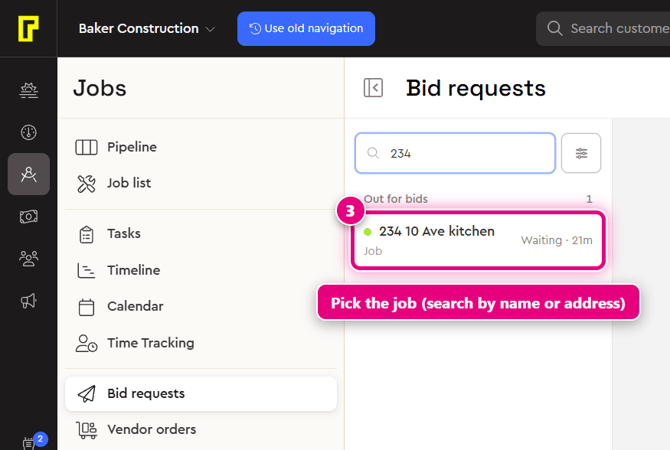
Step 3: In the list on the left, click the job. To find it quickly, type its name or address in the search box above the list.
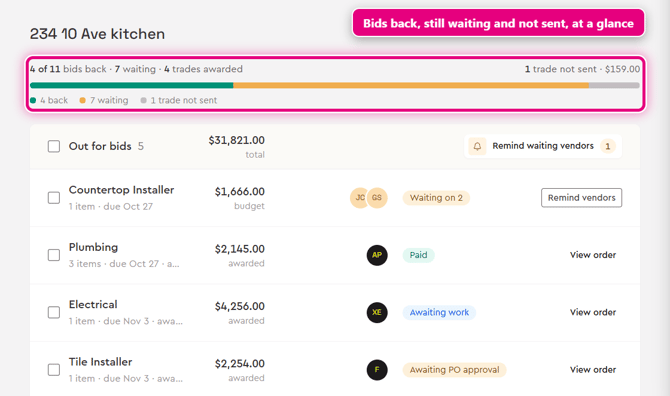
The job's bid requests open on the right. A summary at the top shows how many bids are back, how many are still waiting, how many trades are awarded and how many trades haven't been sent yet.
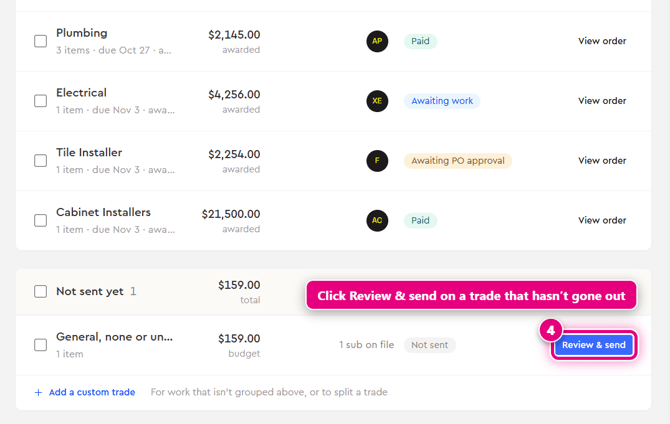
Step 4: Scroll down to Not sent yet. Next to the trade you want priced, click Review & send. To send every unsent trade at once, click Review & send all. Use Add a custom trade for work that isn't grouped, or to split a trade.
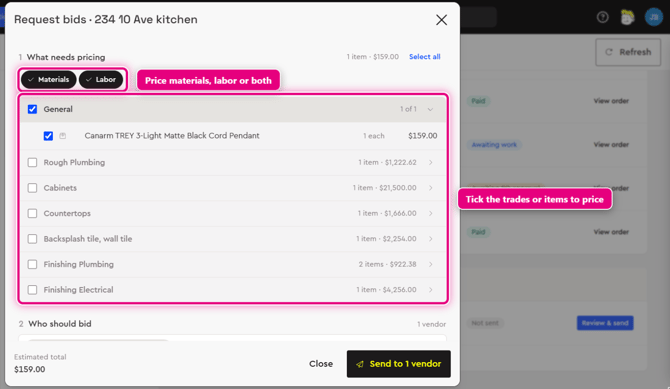
Step 5: The Request bids window opens. Under What needs pricing, choose Materials, Labor or both, then tick the trades or single items you want priced. Click Select all to pick everything.
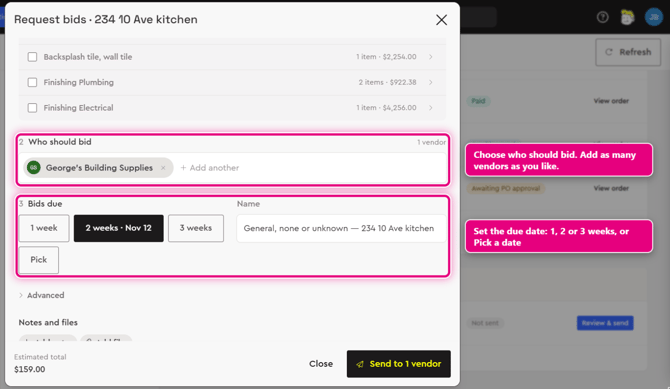
Step 6: Under Who should bid, check the vendors. Vendors you have on file for the trade appear here. Click + Add another to add more. You can add as many vendors as you like.
Step 7: Under Bids due, pick 1 week, 2 weeks or 3 weeks, or click Pick to choose a date. You can also change the bid request Name.
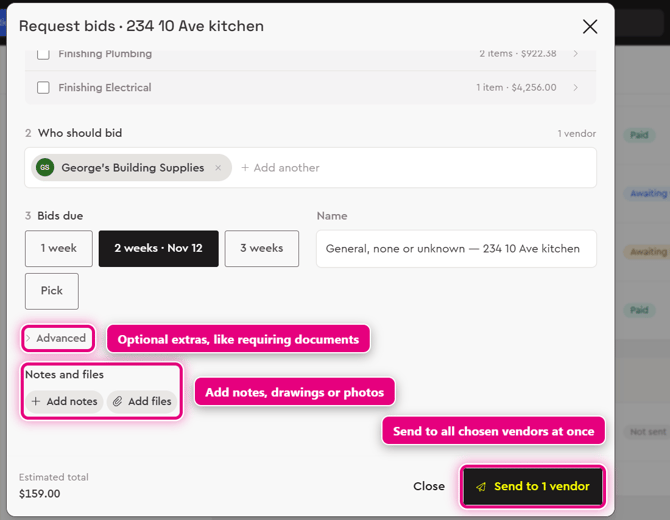
Step 8: Under Notes and files, click Add notes to add instructions, or Add files to attach drawings or photos.
Step 9: Click the Send button at the bottom of the window, for example Send to 2 vendors. Every vendor gets the request at the same time.
Optional: advanced settings
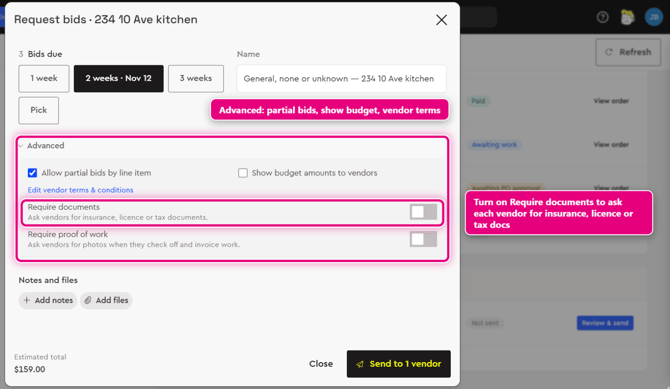
In the Request bids window, click Advanced to:
- allow partial bids by line item
- show your budget amounts to vendors
- edit your vendor terms and conditions
- require documents, so vendors send their insurance, licence or tax documents
- require proof of work, so vendors add photos when they check off and invoice work
Remind vendors
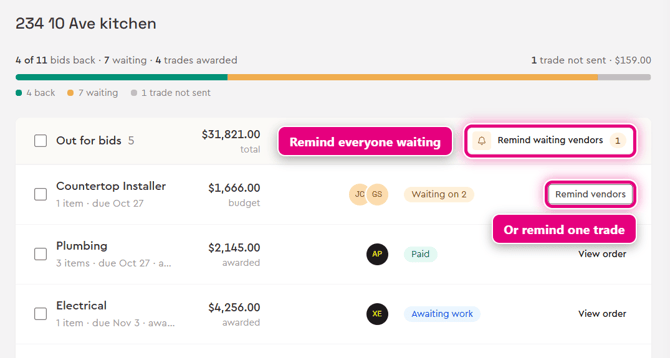
Each trade that's out for bid shows its status, for example "Waiting on 2". To nudge vendors who haven't replied, click Remind vendors next to the trade. To remind every vendor who hasn't bid yet, click Remind waiting vendors at the top of the Out for bids section. You can also open a trade and click Remind under a single vendor.
Next: Award a bid and create a purchase order.
Learn more
- Vendor Management in Bolster: Send RFQ. Generate PO. Pay vendor.
- Construction Purchase Orders: A Contractor's Guide From RFQ to Paid
- Vendor Management overview