
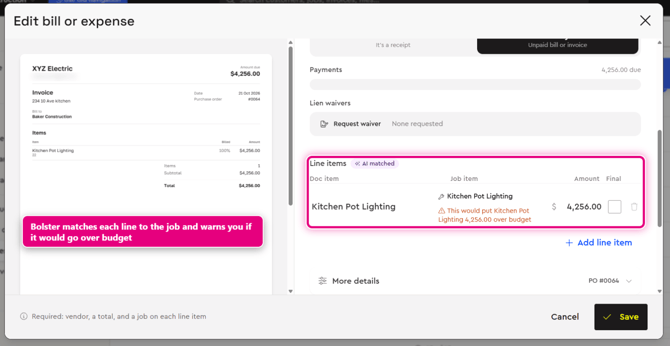
When a vendor finishes the work, their invoice comes into Bolster. You can also upload a bill yourself. Bolster reads it, matches each line to the job and the purchase order, and warns you if anything would go over budget. Then you pay it from Bolster Wallet, your built-in business account.
Where to find it: Jobs › Expenses (the page is called Bills & Expenses).
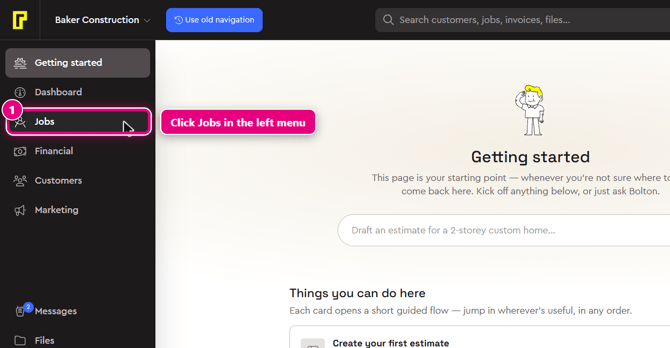
Step 1: In the left menu, click Jobs. Hover over the left menu to see the labels. Jobs is just below Dashboard.
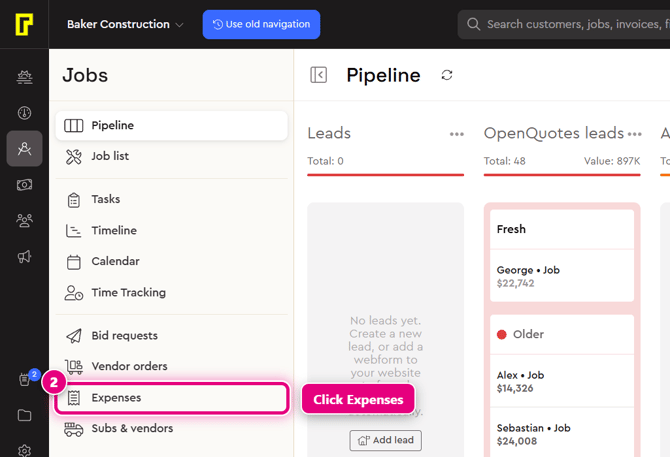
Step 2: In the Jobs menu, click Expenses. The Bills & Expenses page opens, with tabs for All, Paid, Unpaid and Submitted by vendors.
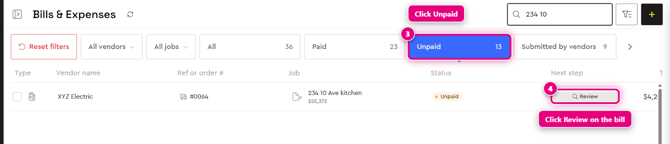
Step 3: Click the Unpaid tab.
Step 4: Find the vendor's bill and click Review in the Next step column. The Edit bill or expense window opens, with the vendor's invoice on the left and the review on the right.
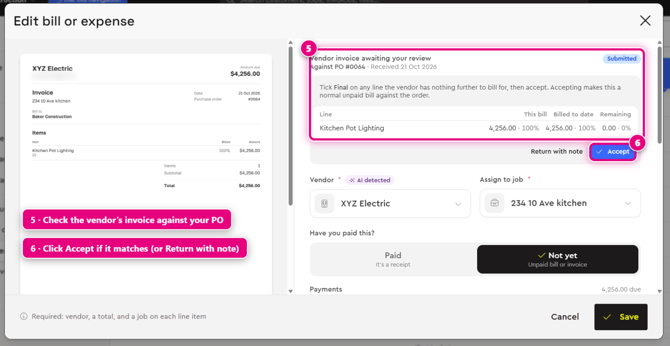
Step 5: Check the vendor's invoice against your PO. For each line, you can see what's on this bill, what's been billed to date and what's remaining. Tick Final on any line the vendor has nothing further to bill for.
Step 6: If it matches, click Accept. Accepting makes it a normal unpaid bill against the order. If something's wrong, click Return with note.
Further down, under Line items, Bolster matches each line on the invoice to an item on the job and warns you if it would put that item over budget.
Step 7: Pay the bill from your Bolster business account (Bolster Wallet), then save. If your Wallet balance is short, you can top up from your linked bank. The vendor is notified once the money lands and can usually collect it within one to three business days.
Related: Track your vendor orders and How vendor costs show up in your job budget.
Learn more
- Vendor Management in Bolster: Send RFQ. Generate PO. Pay vendor.
- Construction Purchase Orders: A Contractor's Guide From RFQ to Paid
- Vendor Management overview