
Vendor orders shows every purchase order and work order across your jobs in one list. Filter it to see what's unsent, waiting on the vendor, approved or paid, and take the next step on each order.
Where to find it: Jobs › Vendor orders.
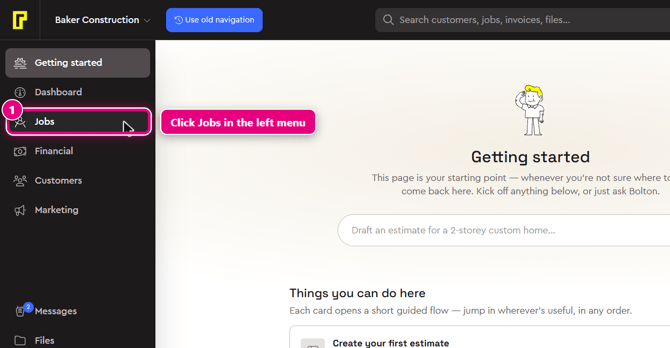
Step 1: In the left menu, click Jobs. Hover over the left menu to see the labels. Jobs is just below Dashboard.
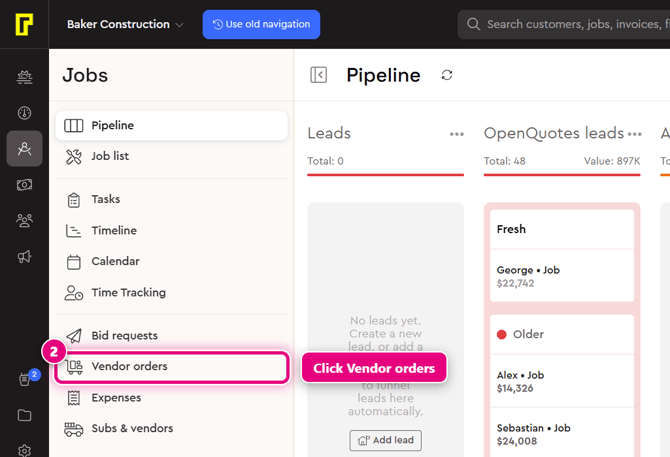
Step 2: In the Jobs menu, click Vendor orders. Each row shows the vendor and order number, the order status, the job, whether there's an invoice or receipt, the next step and the order total.
Step 3: Use the filters at the top of the list: All vendors to pick a vendor, All jobs to pick a job, and the status tabs to filter by status. Click Reset filters to clear them.
Step 4: Check the Next step column. It shows what each order needs, for example Send for an unsent order, Mark approved for an order awaiting approval, or Add vendor invoice for an approved order.
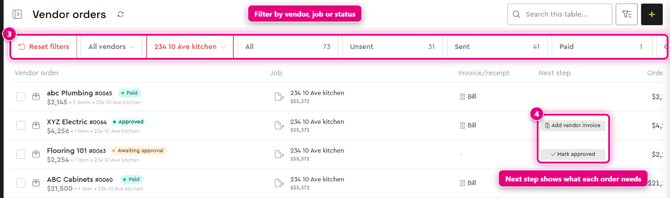
The status tabs are All, Unsent, Sent, Paid, Cancelled, Not Approved, Approved and Declined. Scroll the tabs sideways to see them all.

Step 5: Tick the box next to an order to select it.
Step 6: Use the actions that appear at the top of the list: Edit, Mark approved, Add invoice/receipt or Resend. Click More for other options.
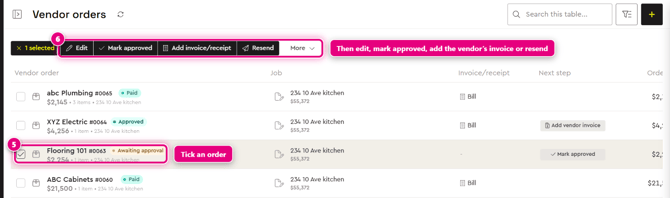
An order shows Awaiting approval until your vendor accepts it.
Tip: to see just one job's orders, open the job and click Vendor orders in the job menu.
Related: Award a bid and create a purchase order and Review and pay a vendor bill.
Learn more
- Vendor Management in Bolster: Send RFQ. Generate PO. Pay vendor.
- Construction Purchase Orders: A Contractor's Guide From RFQ to Paid
- Vendor Management overview