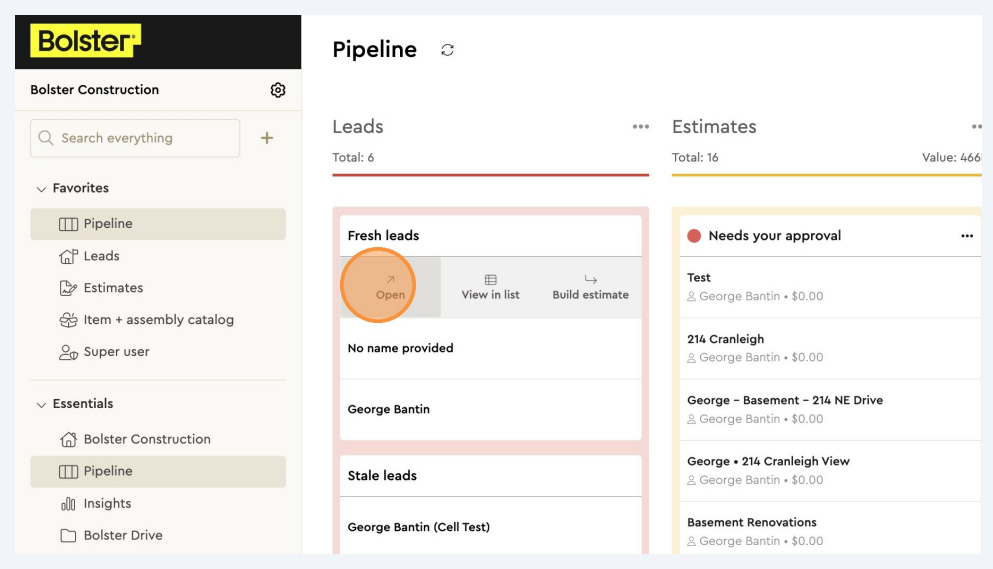
Prerequisite:
You must first complete Create a Zapier Trigger for Your Bolster Lead Form
In Zapier, click Action
Find and select Webhooks by Zapier
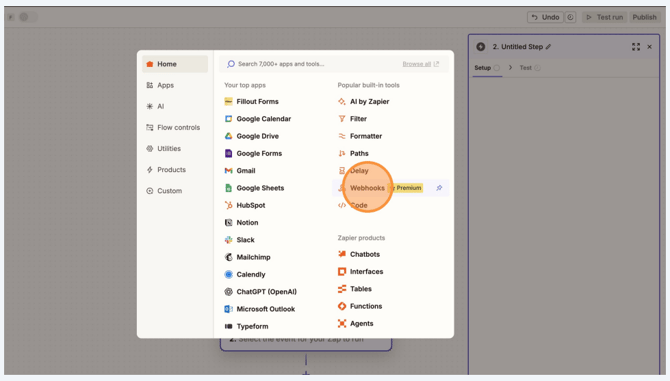
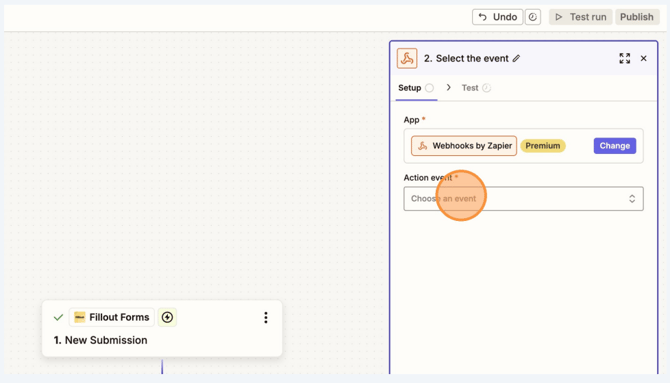
Click “Choose an event”
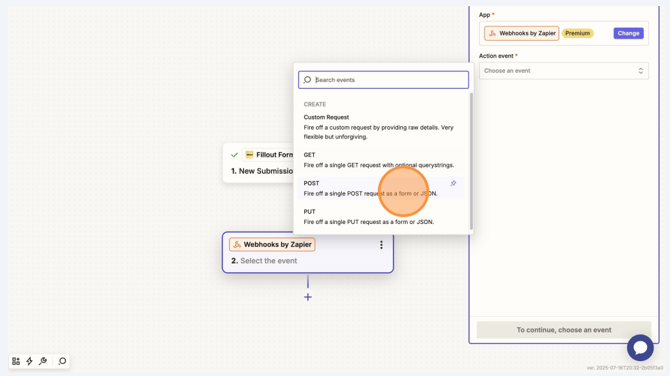
 Select POST
Click “Continue”
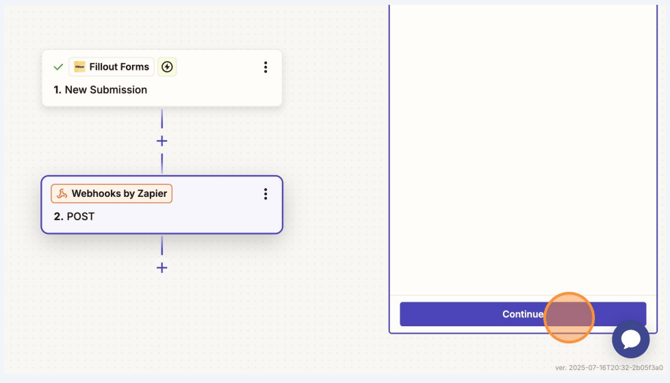
Switch to the Bolster App tab
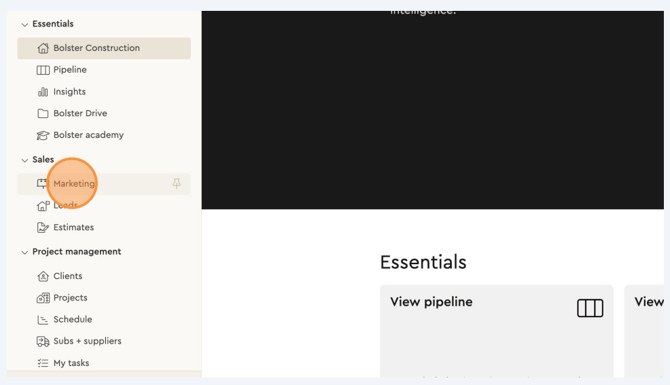
Using the left-hand sidebar, navigate to:
Sales → Marketing
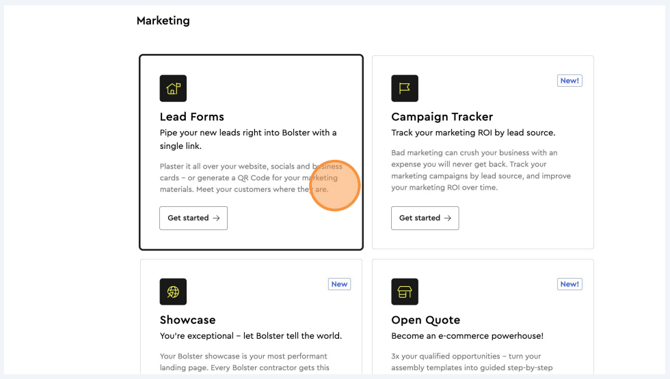
Click Lead Forms
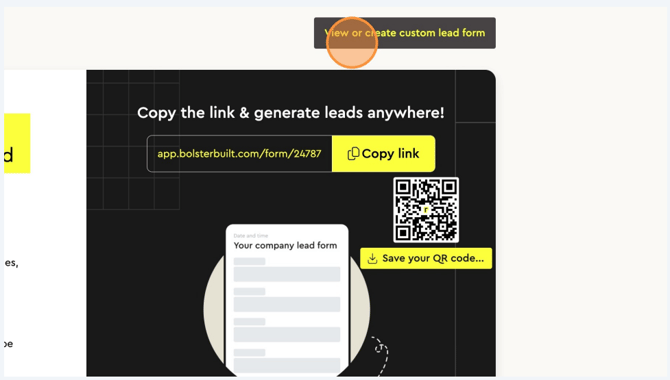
Click “View or create custom lead form”
Double-click the lead form you are linking to
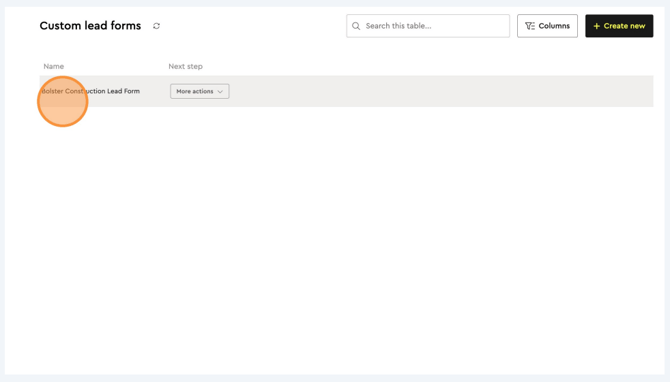
Click “Integrations”
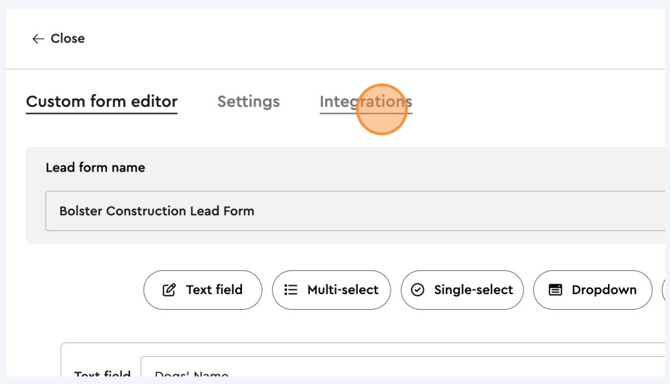
Click “Get POST endpoint”
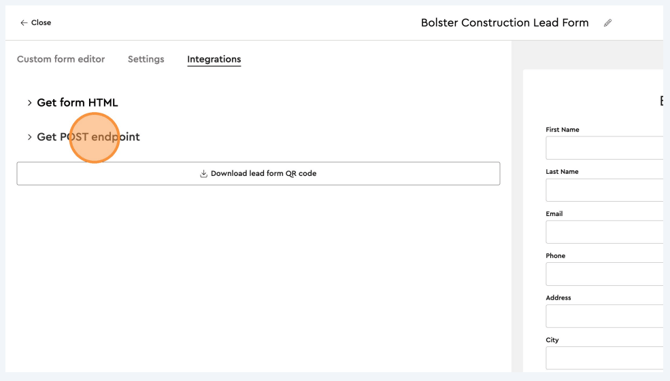
Highlight the URL outlined in the grey box
Press Control + C to copy
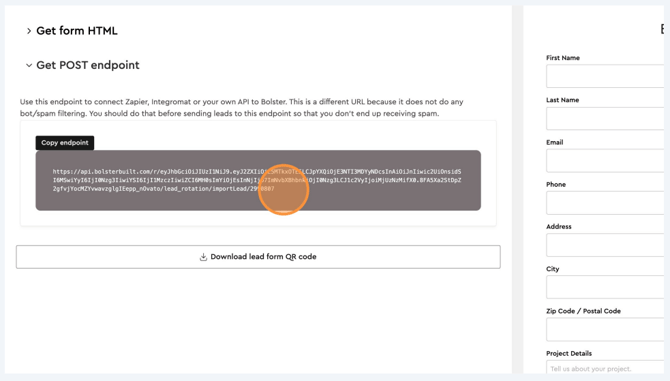
Switch back to the Zapier tab
Paste the URL into the URL field
(Press Control + V)
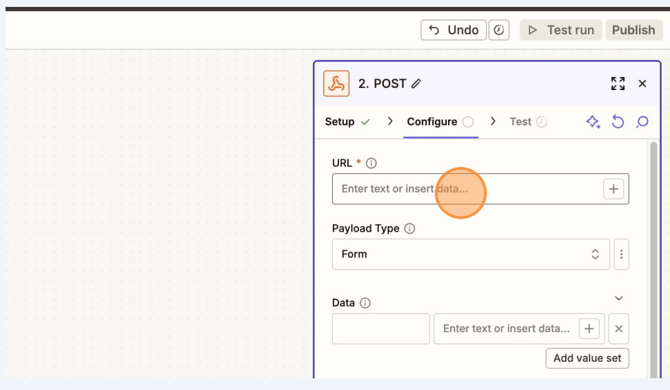
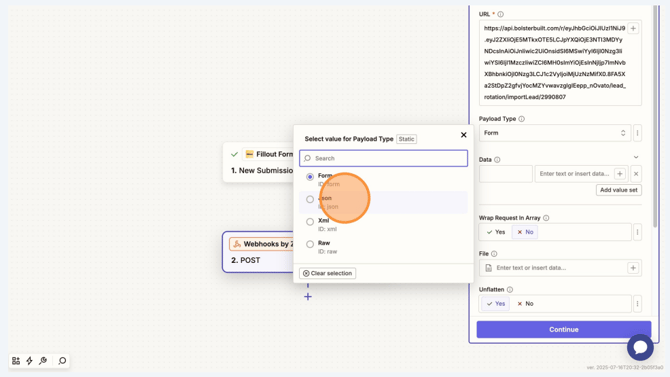
Click Payload Type then Select JSON
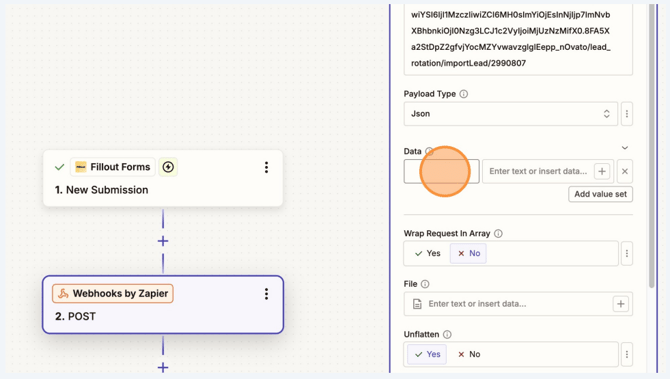
Now link the data from your current lead form to the lead form in Bolster
Switch back to Bolster
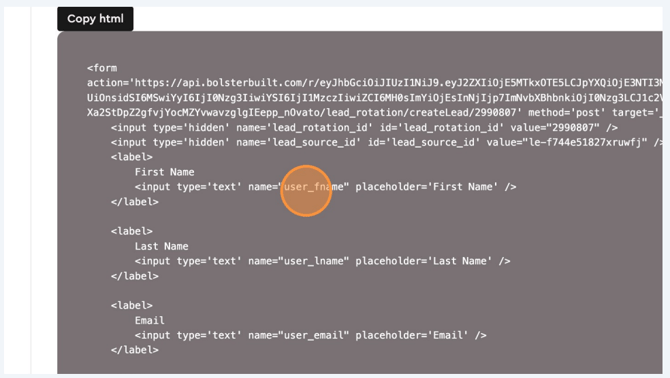
Click “Get Form HTML”
Each input has a Key (example: user_fname for First Name)
Switch back to Zapier
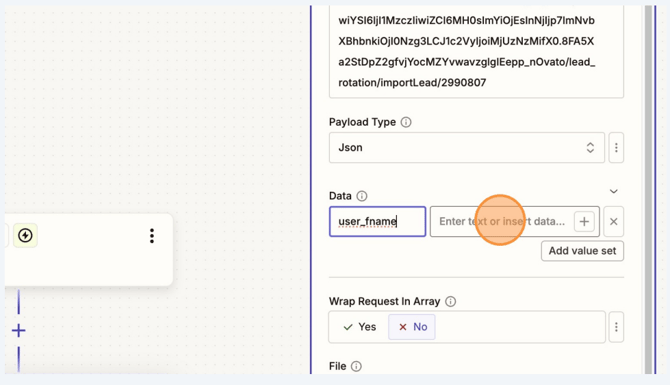
In the Data section:
-
Type the key (example:
user_fname) -
Click +
-
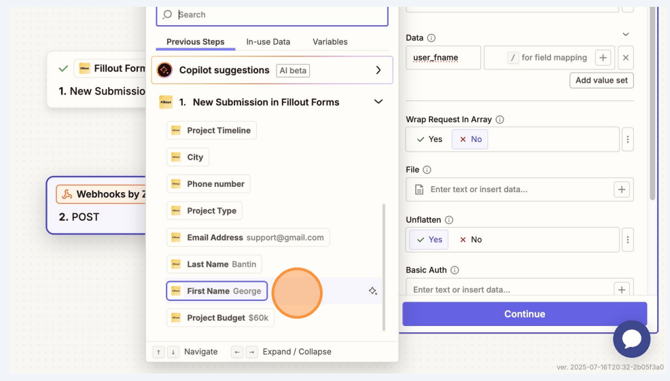
Select the corresponding field from your lead form
Find and select the corresponding input as outlined on your current lead form.
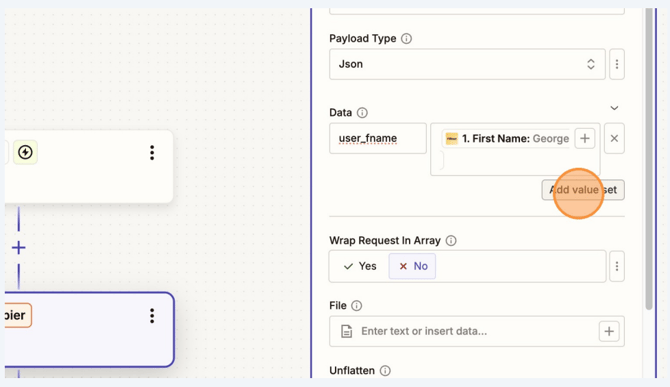
Click “Add value set”
Repeat this step for each required field
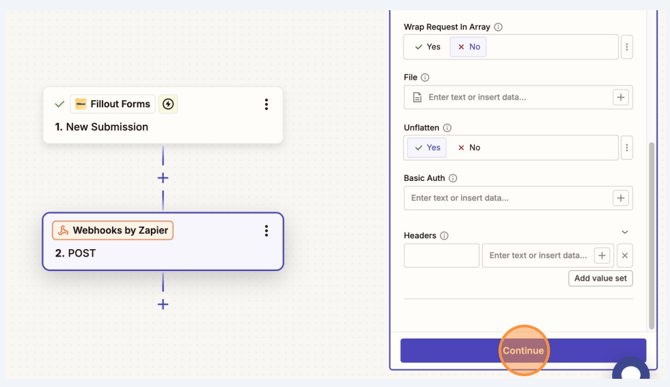
Once all fields are mapped, click “Continue”
Click “Test Step”
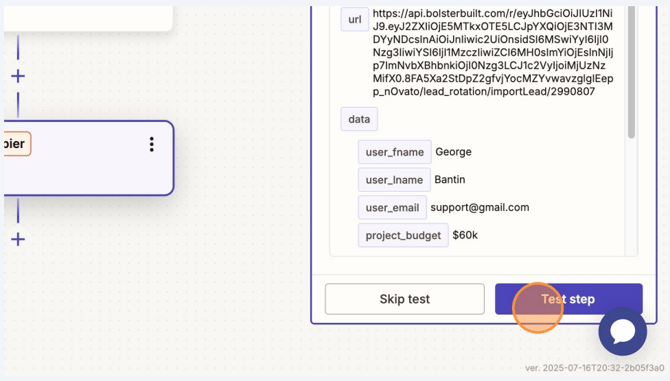
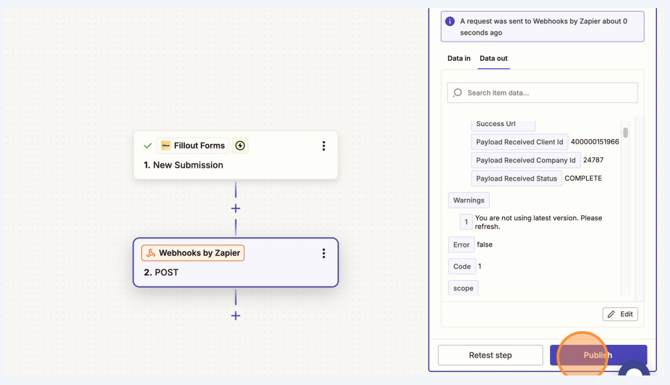
Click Publish
A popup will confirm your Zap is live
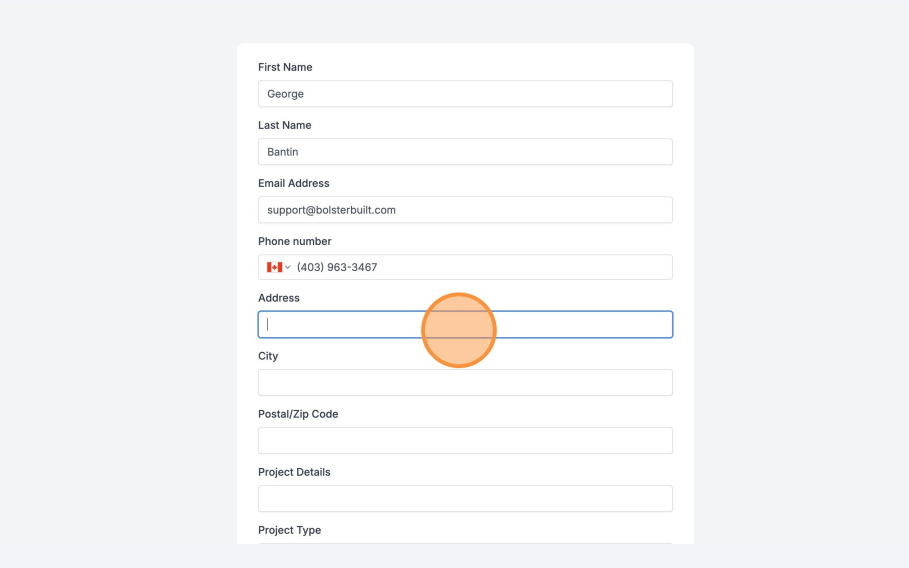
Switch to the page that hosts your lead form and complete and submit the lead
form.
Switch to tab Bolster and see the new lead showing under the lead column within your pipeline.
Click open to view the client details.