
After you have completed this walkthrough go to "Send Lead Form Data into Bolster Using Webhooks" to continue.
In a new tab, navigate to
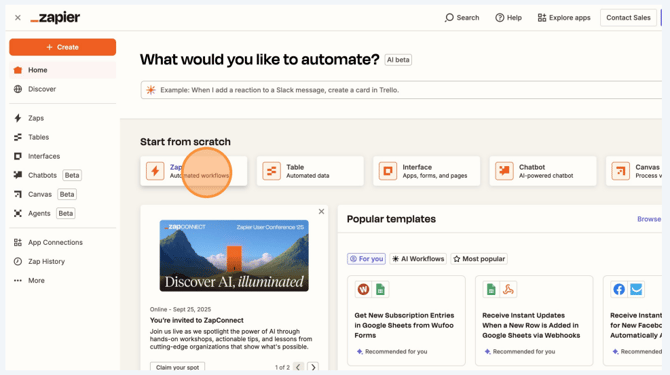
https://zapier.com/app/home
Click “Automated workflows”
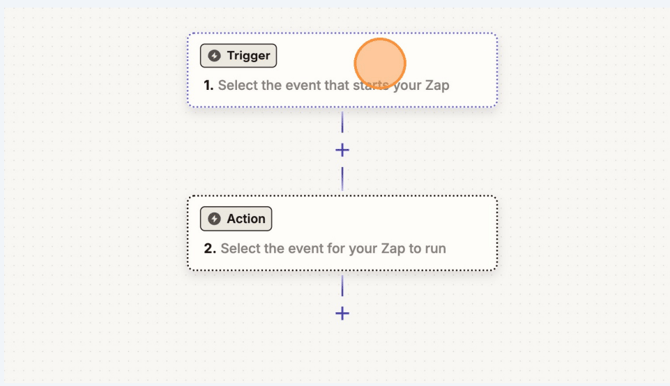
Click Trigger – Select the event that starts your Zap
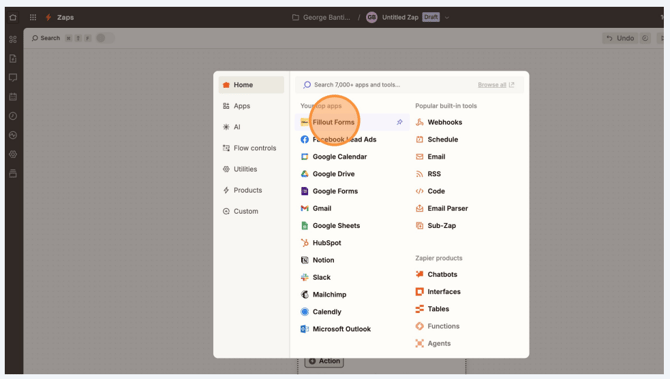
Find and select the app that your current lead form is within
Click “Choose an event” from the dropdown below Trigger event
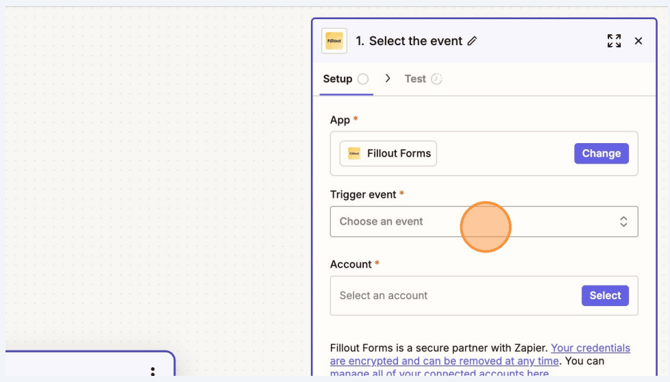
Choose the trigger event from the dropdown list
(e.g. New Submission)
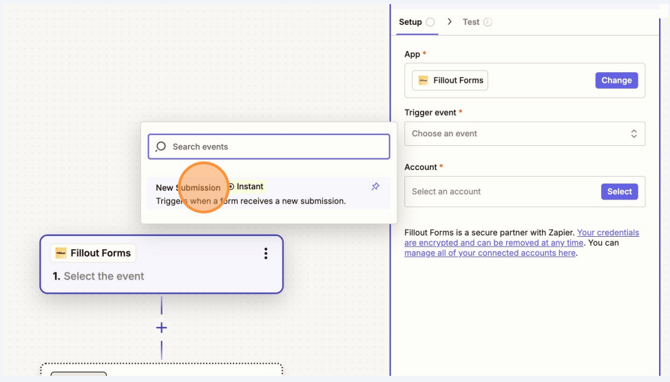
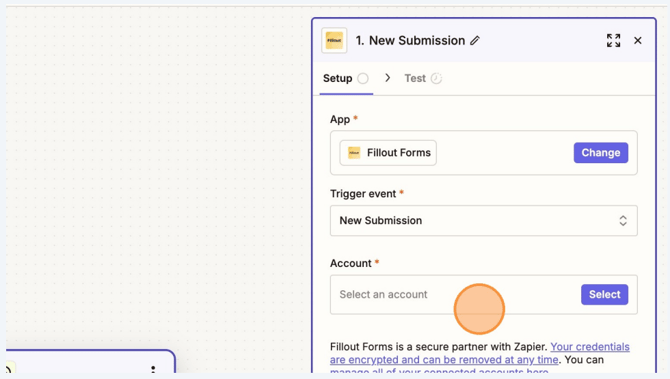
Click “Select an account”
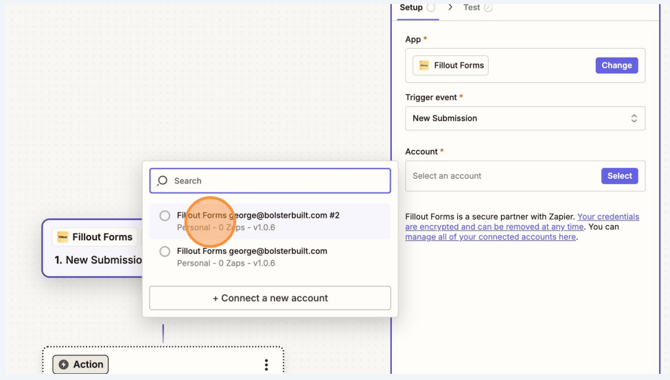
Click on the account that you have connected and verified with Zapier
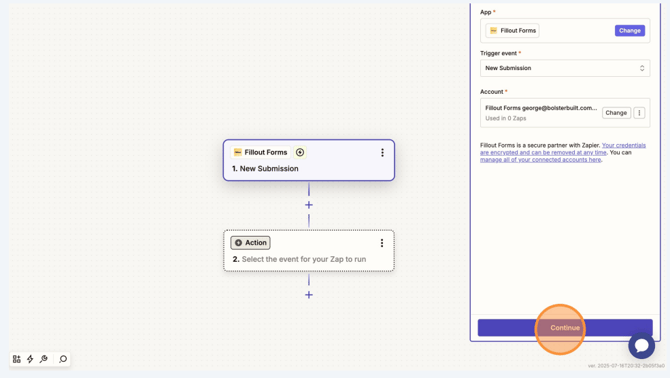
Click “Continue”
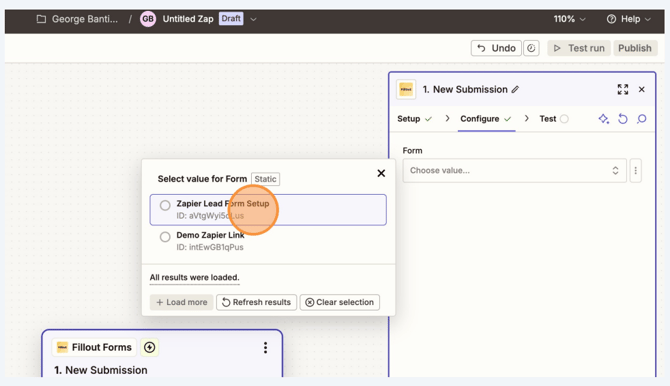
Click the box below Form and select the lead form you want to link to Bolster
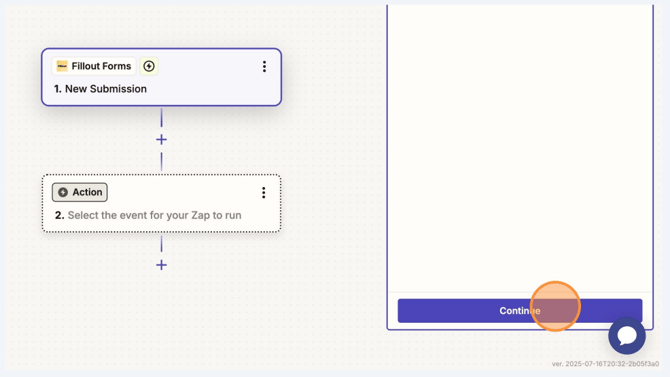
Click “Continue”
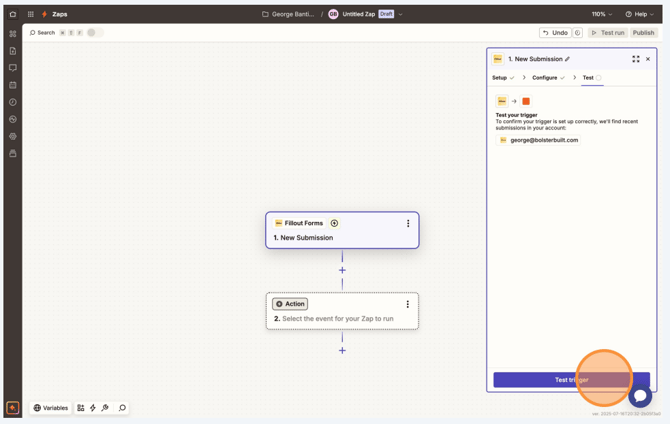
Click “Test trigger”
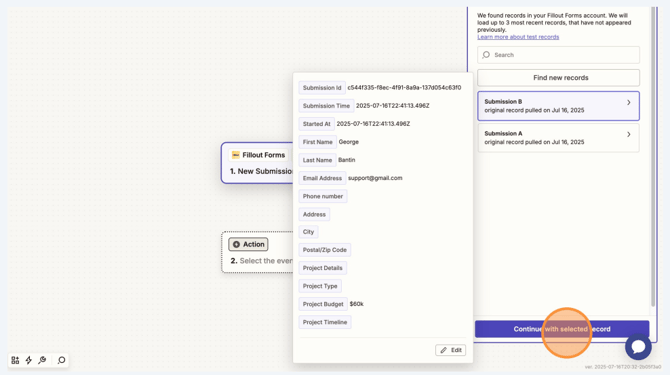
Click on the recorded submission and hit
“Continue with selected record”
Next is the "Send Lead Form Data into Bolster Using Webhooks" tutorial