
When vendors reply to your bid request, Bolster lines their bids up against your budget so you can compare like with like. Awarding a bid creates the purchase order (vendor order) for you.
Where to find it: Jobs › Bid requests › your job › Compare & award.
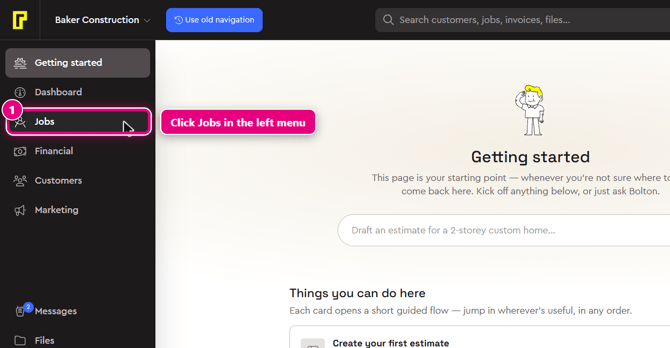
Step 1: In the left menu, click Jobs. Hover over the left menu to see the labels. Jobs is just below Dashboard.
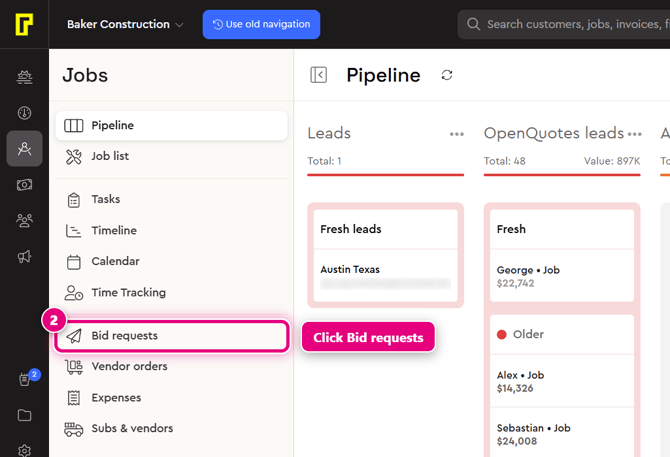
Step 2: In the Jobs menu, click Bid requests.
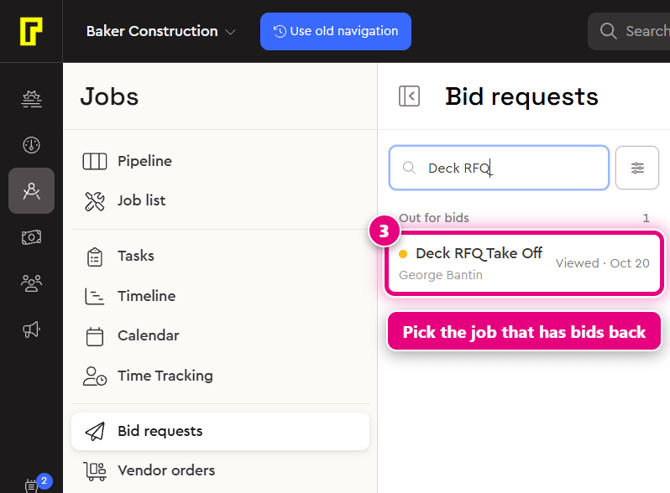
Step 3: In the list on the left, click the job that has bids back. Jobs waiting on vendors are under Out for bids.
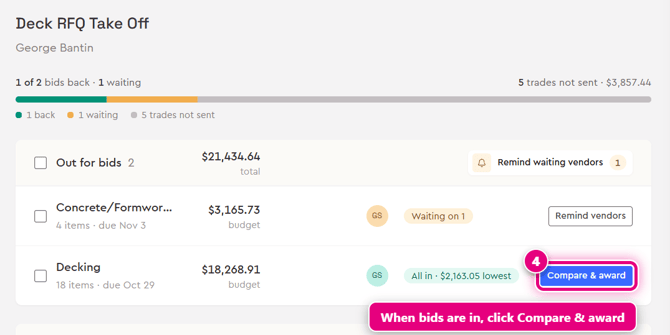
Step 4: Find the trade under Out for bids. When vendors have replied, it shows how many bids are in and the lowest bid, for example "All in" with the lowest bid amount. Click Compare & award.
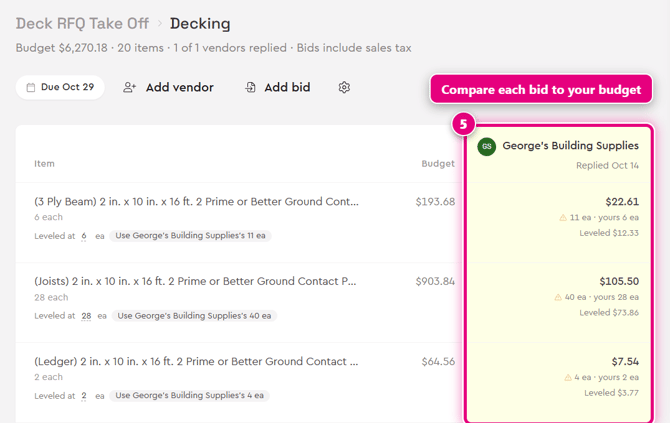
Step 5: The comparison lists every line item, with your budget next to each vendor's price. If a vendor quoted a different quantity, a warning shows both quantities, and Bolster levels the bid to your quantity so you're comparing like with like. To use the vendor's quantity instead, click the button that offers it, for example "Use [vendor name]'s 11 ea".
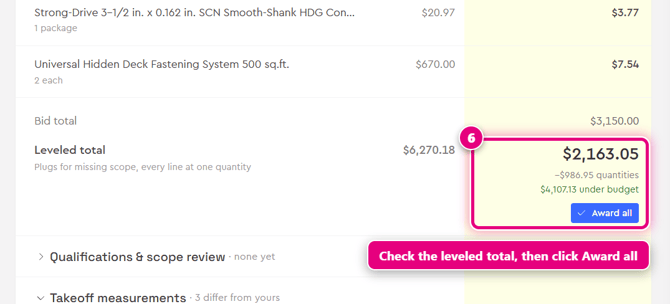
Step 6: At the bottom of the vendor's column, check the Bid total and the Leveled total. The leveled total plugs any missing scope and shows how far the bid is over or under budget. When you're happy, click Award all.
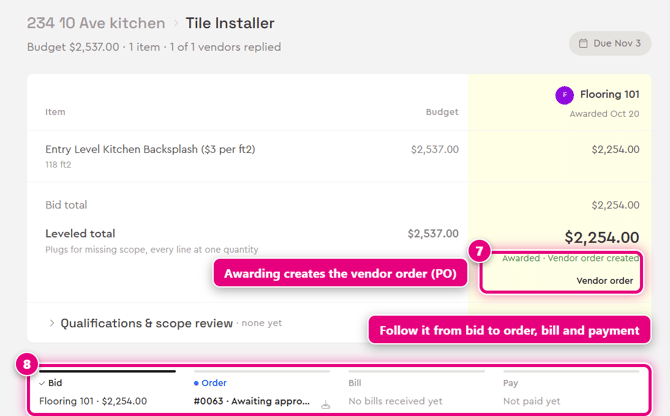
Step 7: The vendor's column now says Awarded · Vendor order created, with a Vendor order link. Awarding the bid has created a purchase order for that vendor.
Step 8: A tracker under the comparison shows where things are up to: Bid, Order (with the order number and status), Bill and Pay.
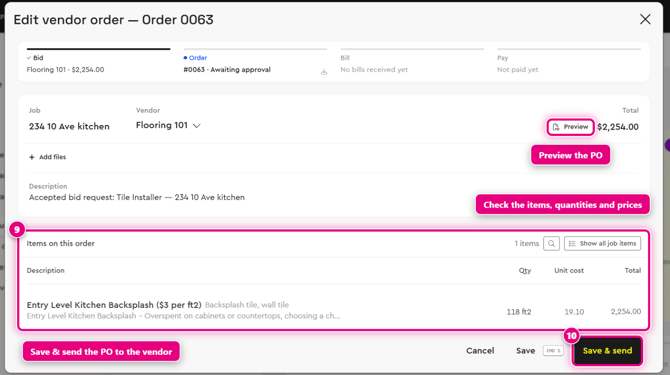
Step 9: Click Vendor order to open the Edit vendor order window. Check the job, vendor, total and the items on the order (quantity, unit cost and total). Click Preview to see the PO your vendor will get, or Add files to attach anything else.
Step 10: Click Save & send to send the PO to your vendor. Click Save to keep it without sending.
What happens next
Your vendor accepts (approves) the purchase order. Until they do, the order shows Awaiting approval. Once it's approved, the vendor does the work and sends their invoice for you to review and pay.
See Track your vendor orders and Review and pay a vendor bill.
Tip: you can also create a vendor order straight from the job budget. Open the job, click Budget, then click + Vendor order.
Learn more
- Vendor Management in Bolster: Send RFQ. Generate PO. Pay vendor.
- Construction Purchase Orders: A Contractor's Guide From RFQ to Paid
- Vendor Management overview