
Overview
With the Vendor Import Tool, you can:
-
Import vendors in bulk using a spreadsheet
-
Add contact names, emails, phone numbers, and addresses
-
Create subcontractors and suppliers instantly
-
Avoid manually entering vendors one by one
Imported vendors appear immediately in your Vendors list and can be used throughout Bolster.
How to Access the Vendor Import Tool
-
Log in to https://app.bolsterbuilt.com
-
In the left-hand navigation, go to:
Admin -
Click Vendor import tool
You will land on the Import vendors page.
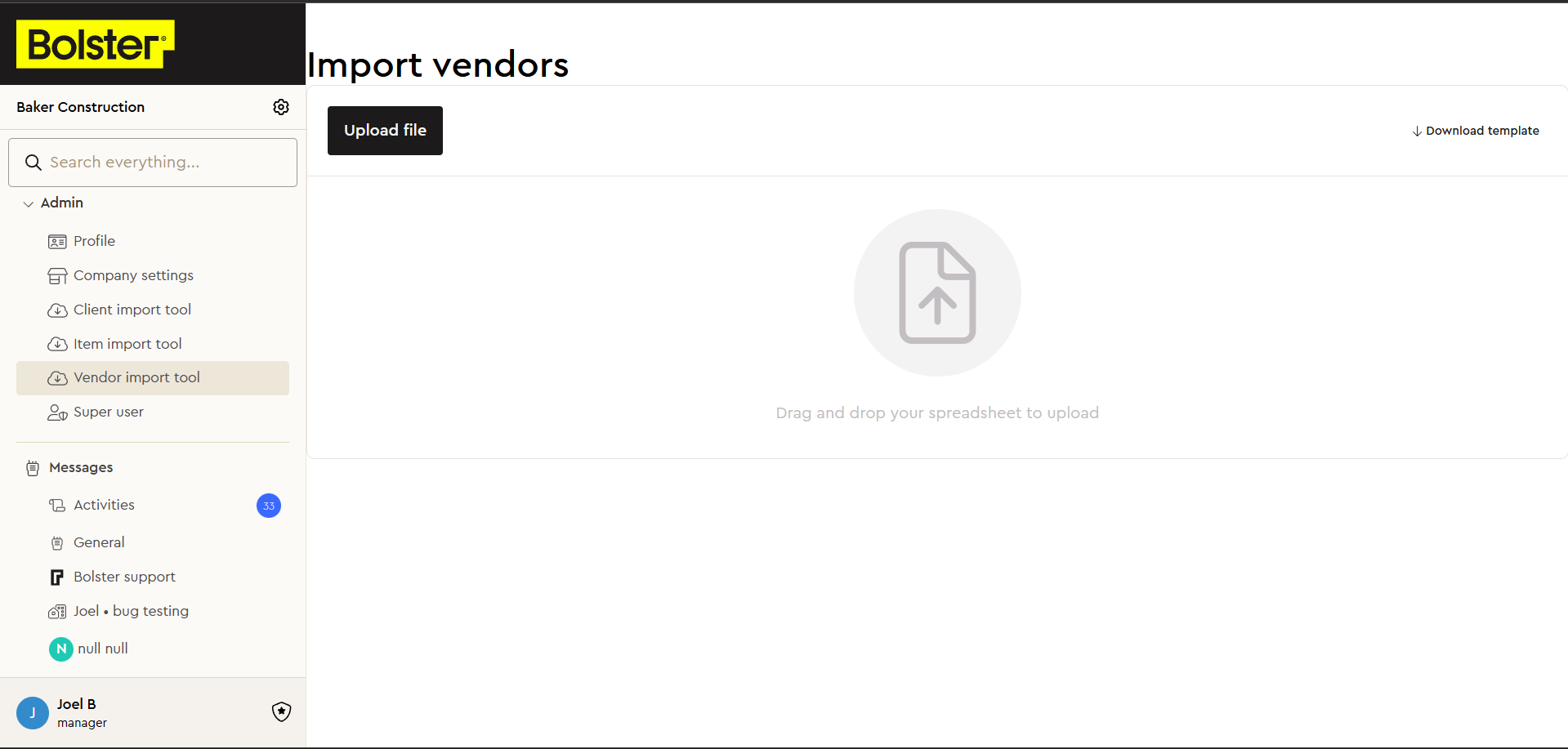
Import Vendors Page
On the Import Vendors page, you will see:
-
Upload file — Upload your completed spreadsheet
-
Download template — Download the official vendor import template
-
A drag-and-drop upload area
Always use the provided template to ensure your import is successful.
Step 1: Download the Vendor Import Template
-
Click Download template
-
Open the template in Google Sheets or Excel
Each row in the template represents one vendor.
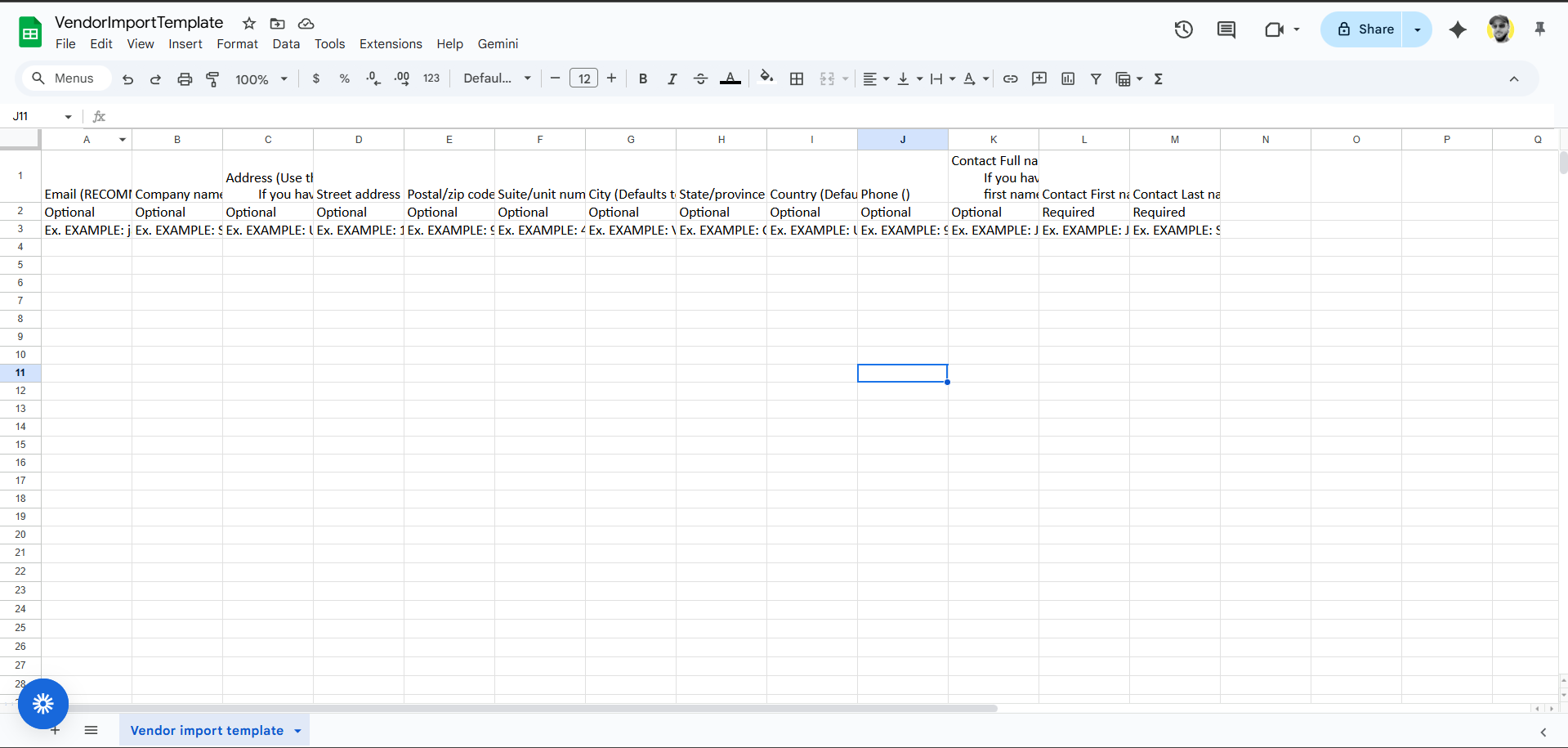
Step 2: Fill Out the Vendor Import Template
Use the grid below to understand what each column does and which fields are required.
Vendor Import Template – Column Guide
| Column Name | Required | Description | Example |
|---|---|---|---|
| Optional (Recommended) | Vendor’s primary email address. Used for communication and records. | jane@smithco.com | |
| Company Name | Optional | Vendor’s business or company name. | Smith Co Ltd. |
| Address (Single Field) | Optional | Use only if the full address exists in one column. Includes street, city, state/province, postal/zip, and country. | Unit 123, 321 Mountain Ave, New City, KS, 33333 |
| Street Address | Optional | Street number and name only. Use if address fields are separated. | 123 Pine Street |
| Postal / Zip Code | Optional | Vendor’s postal or zip code. | 90210 / T2G 0X2 |
| Suite / Unit Number | Optional | Apartment, suite, or unit number. | 456A |
| City | Optional | Vendor’s city. Defaults to your company city if not provided. | Vancouver |
| State / Province | Optional | Vendor’s state or province. Defaults to your company state/province if not provided. | California |
| Country | Optional | Vendor’s country. Defaults to your company country if not provided. | United States |
| Phone | Optional | Vendor’s primary phone number. | 999-999-9999 |
| Contact Full Name | Optional* | Full name of the vendor contact. Use if the name is stored in one field. | Jane Smith |
| Contact First Name | Required* | Vendor contact’s first name. Required if full name is not provided. | Jane |
| Contact Last Name | Required* | Vendor contact’s last name. Required if full name is not provided. | Smith |
Required Field Rules
You must provide either:
-
Contact Full Name
OR -
Contact First Name and Contact Last Name
All other fields are optional.
Step 3: Upload the Completed Template
-
Return to the Vendor Import Tool page
-
Click Upload file or drag and drop your spreadsheet
-
Confirm the upload
Bolster will process the file and automatically create vendors.
How to Access Vendors After Import
Once imported, vendors appear in your main vendor list.
Accessing Vendors
-
In the left-hand navigation, go to:
Team management -
Click Vendors
This opens the Subcontractors + suppliers table.
Vendors Page Overview
From the Vendors page, you can:
-
View all subcontractors and suppliers
-
Search and filter vendors
-
Create new vendors manually
-
Edit vendor details
-
Use vendors in estimates, budgets, and purchase orders
Imported vendors behave exactly the same as manually created vendors.