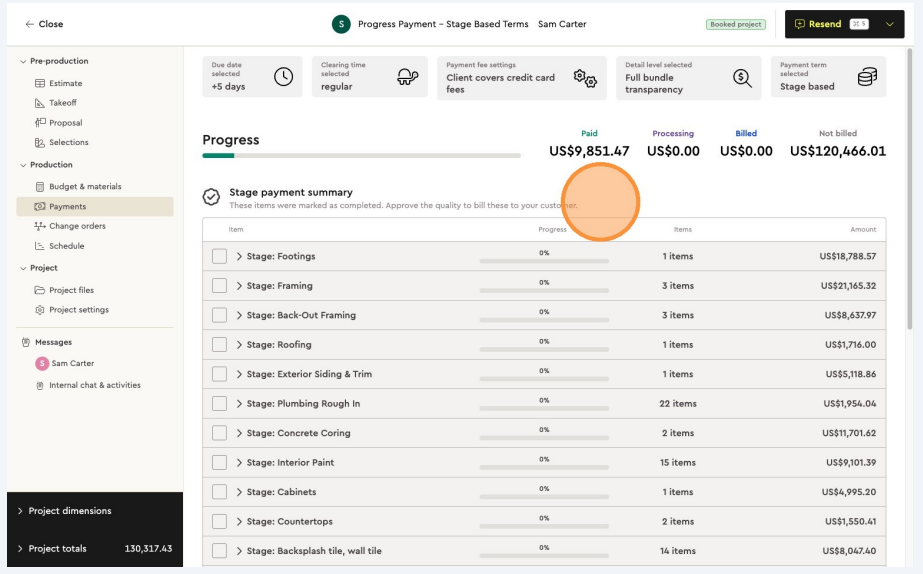
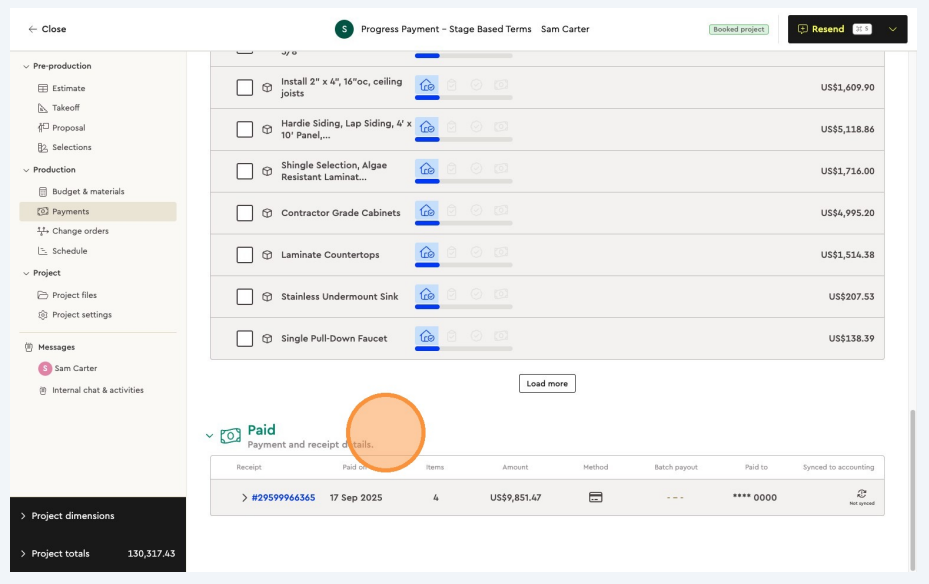
What it is: Payments are tied to specific milestones in the build process. Once all items/tasks within the stage are completed. A payment request is automatically sent to your client for approval & payment.
Why use it: Ideal for contractors who work in well-defined stages.
-
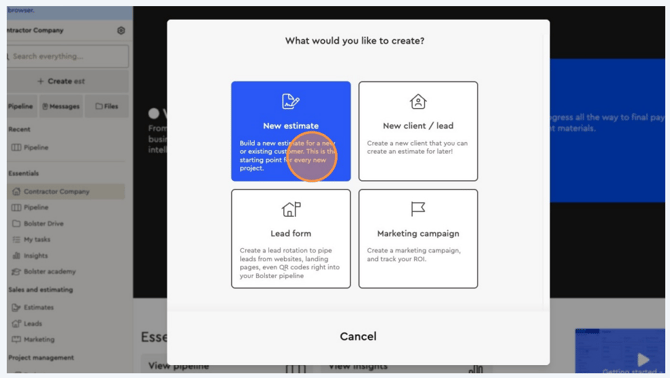
Start every new project by creating an estimate for a new or existing customer.
-
Once your estimate is ready, click Save Estimate Changes to lock in your updates.
When your estimate is complete and you’re satisfied, click on Payments to set up this project’s payment terms.
-
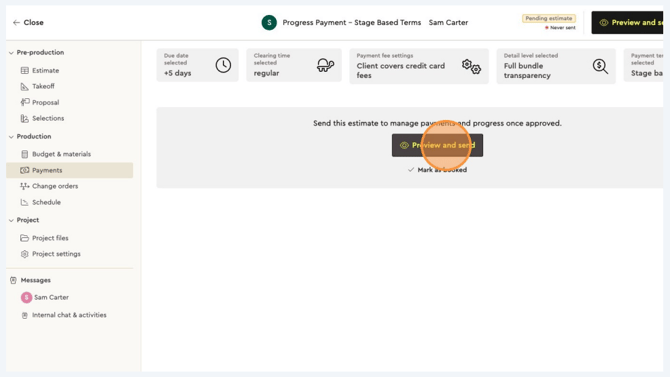
First, choose the due date for payments throughout the project.
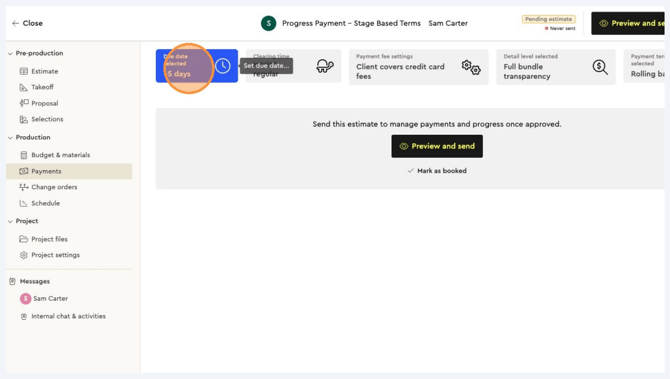
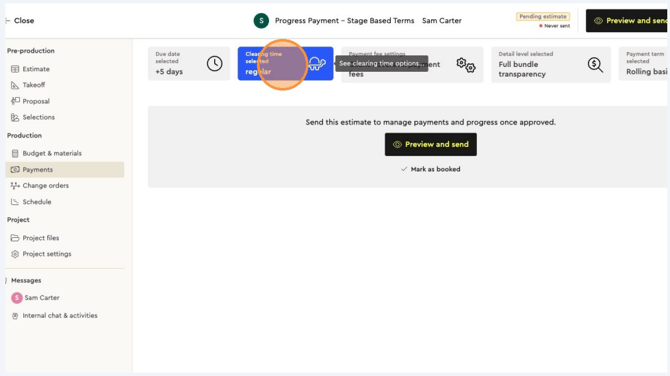
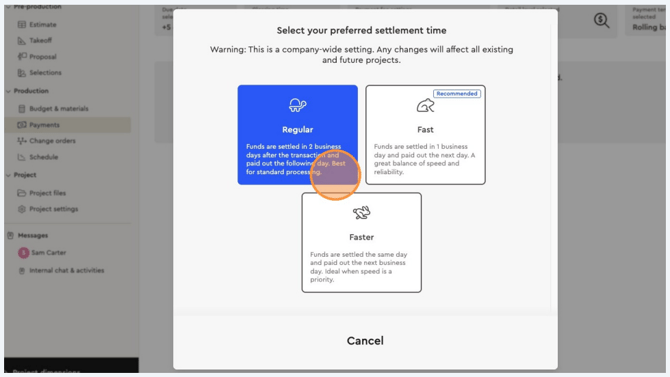
Choose how quickly you’d like the funds to settle into your Bolster Business Account:
-
Regular – Available in 2 business days
-
Fast – Available in 1 business day
-
Faster – Available the same day
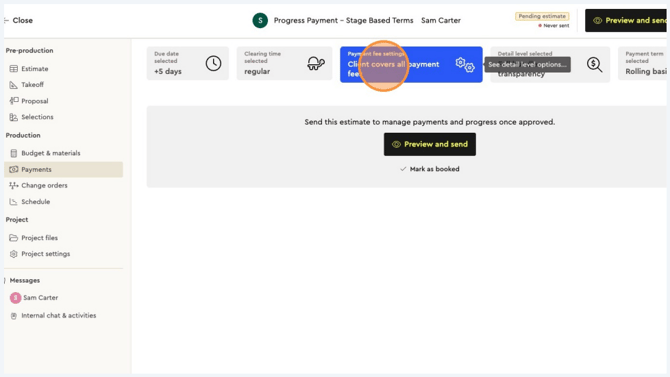
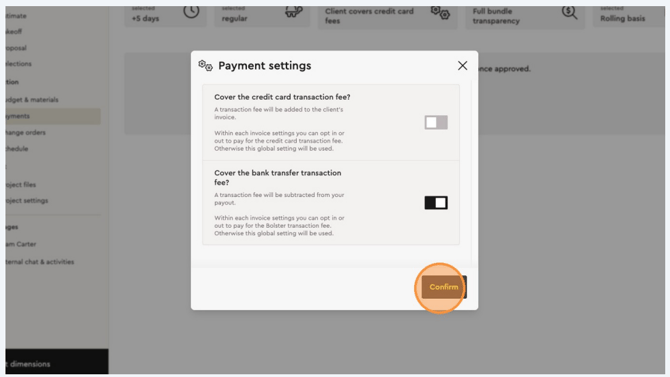
Decide whether you’d like the client to cover credit card fees for this project, or if you’d prefer to cover them yourself & confirm.
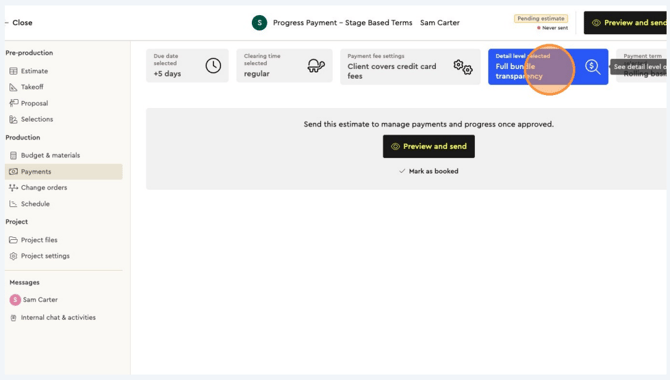
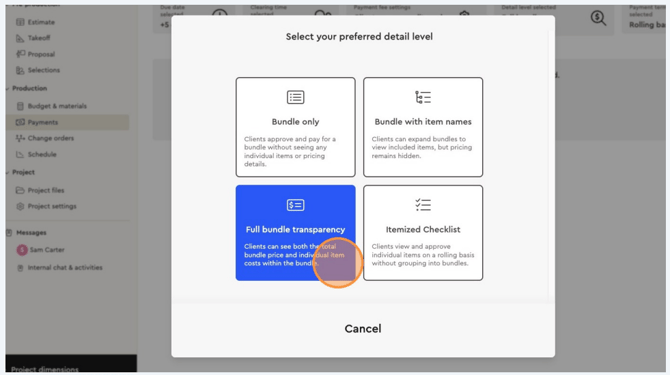
Choose the level of detail you’d like your client to see on their payment request:
-
Bundle only - Client approves and pays for the bundle without seeing item details or pricing.
-
Bundle with item names – Client can expand bundles to view included items, but pricing stays hidden.
-
Full bundle transparency – Client sees both the total bundle price and individual item costs.
-
Itemized checklist – Client views and approves each item individually, without bundle grouping.
Click "Clients view and approve individual items on a rolling basis without grouping into bundles." & confirm.
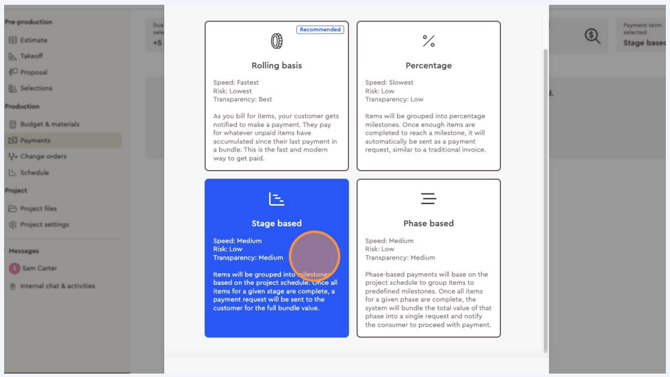
Select “Stage Based” as your payment term and confirm.
-
Speed: Medium
-
Risk: Low
-
Transparency: Medium
Items will be grouped into milestones based on the project schedule. Once all items for a given stage are complete, a payment request will be sent to the client for the full bundle value.
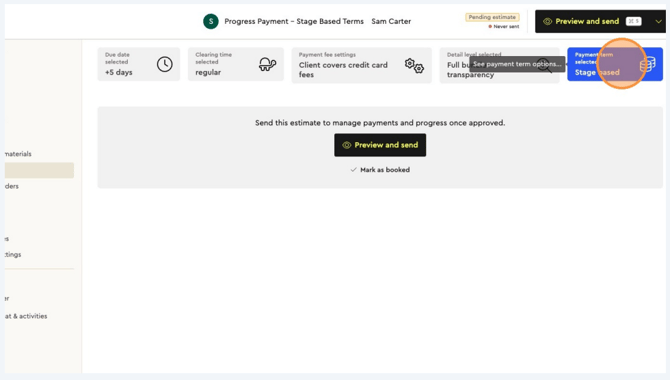
After setting up the project’s payment terms, you can preview the proposal as your client would see it, present it in person, or send it (via email & sms) for their approval.
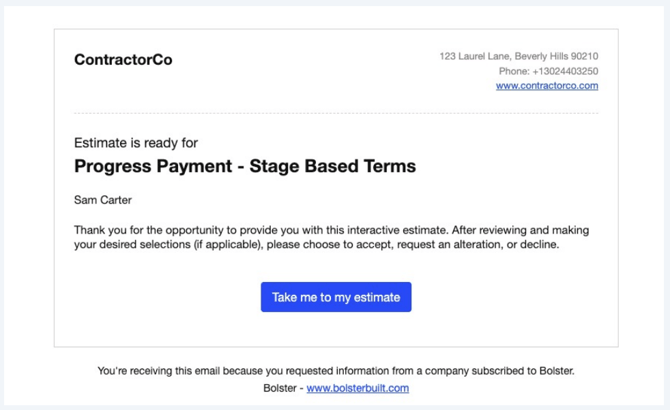
Your client will receive a notification to view the proposal, in this they can see the level of detail you’ve shared, make selections, approve the proposal, and accept the project’s terms and conditions.
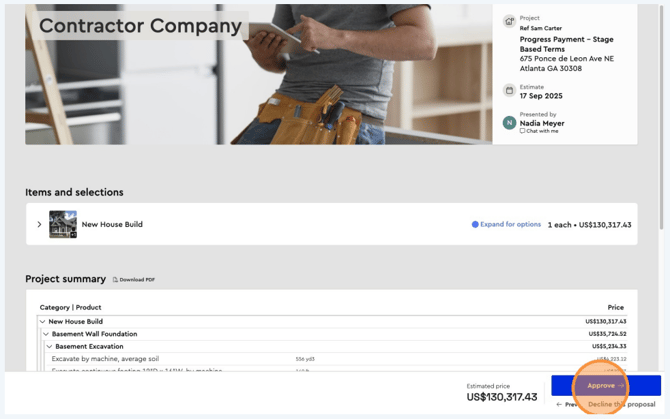
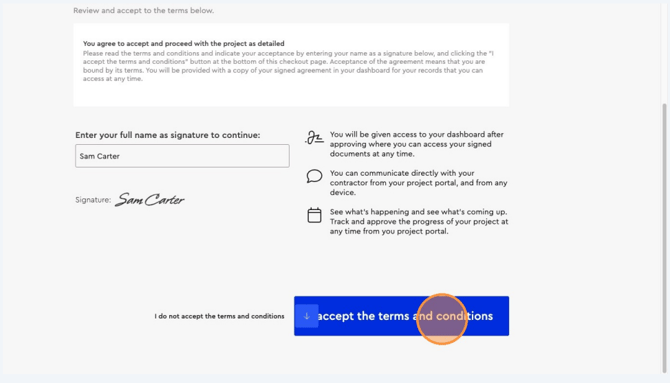
Once the client has approved the proposal and the job is booked, you’ll receive a notification.
-
Log into Bolster to start the project.
-
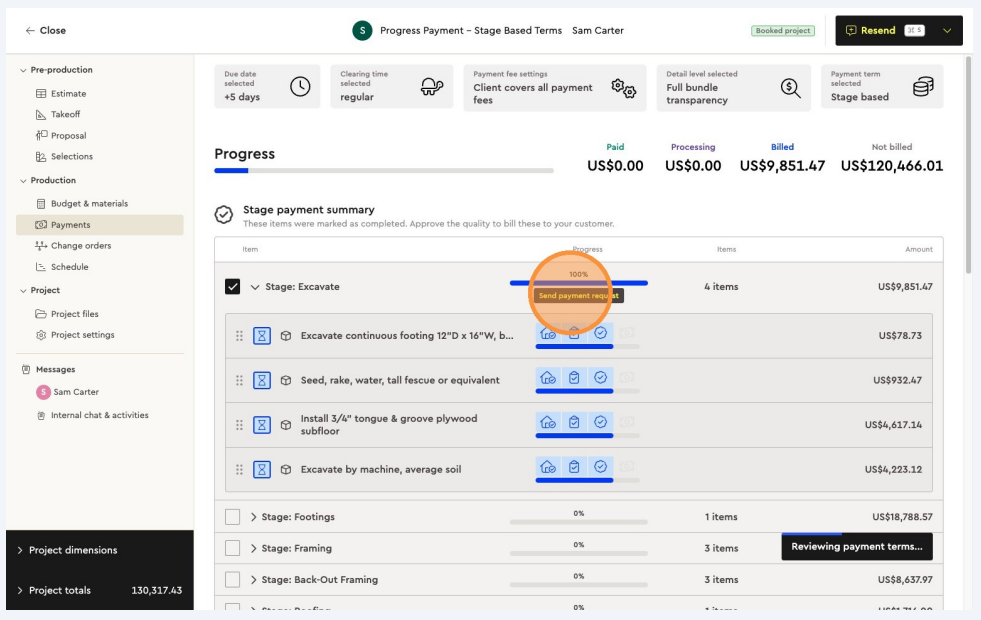
Tick off the project tasks as they are completed and approved. Run these actions from the Production tab > Budget & Materials (progress bar) or Payments.
-
-
Bolster will create a payment request to send to the client via their portal for approval and payment. You can track:
-
Which stage of the project has been sent for billing
-
Which stage of the project has not yet been sent for billing
-
The overall progress of the billings based on the project stages.
-
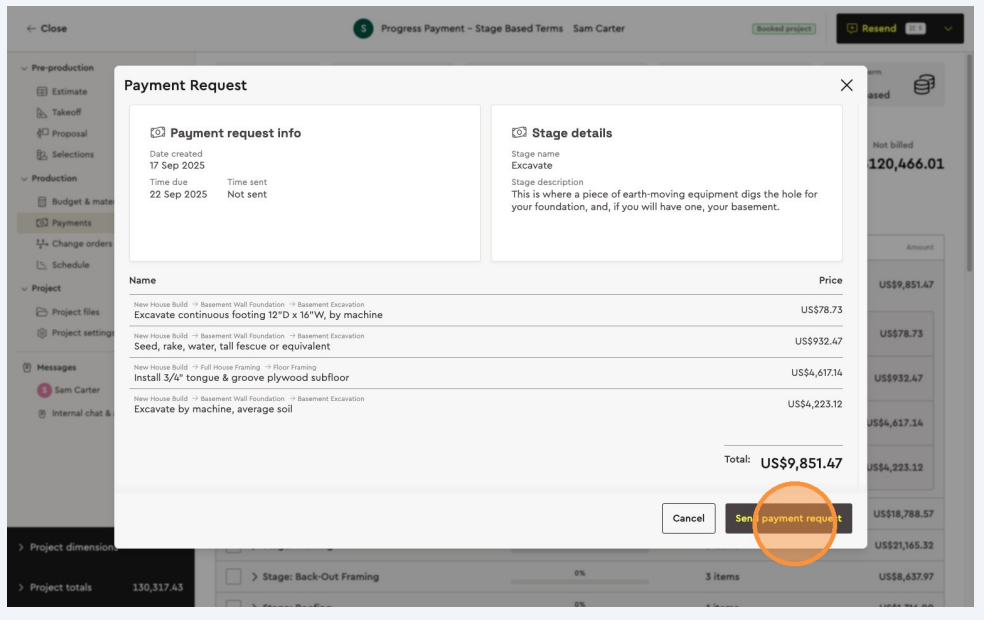
After the payment request is sent, the client can log into their Client Portal to:
-
Review the job progress
-
Approve the quality of completed work
-
Make a payment
The client only needs to enter their payment details on the first payment. After that, Bolster allows them to automatically approve & pay future requests throughout the project safely & securely.
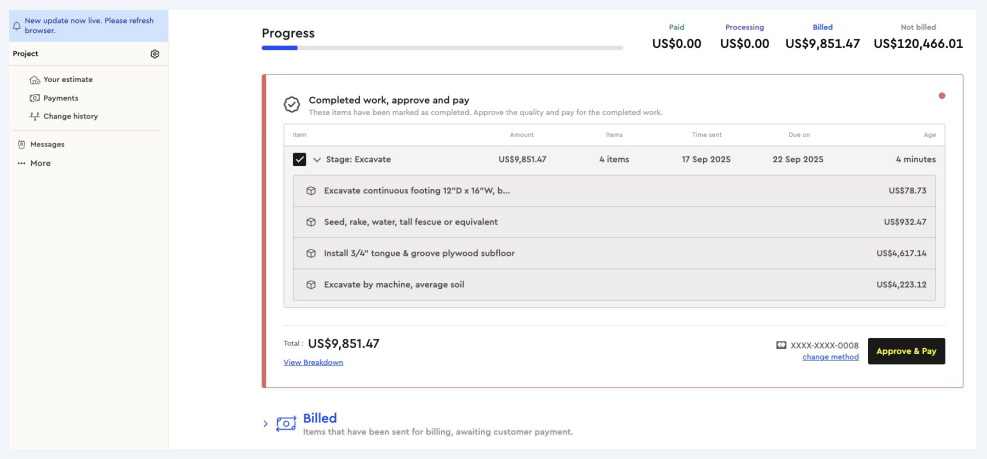
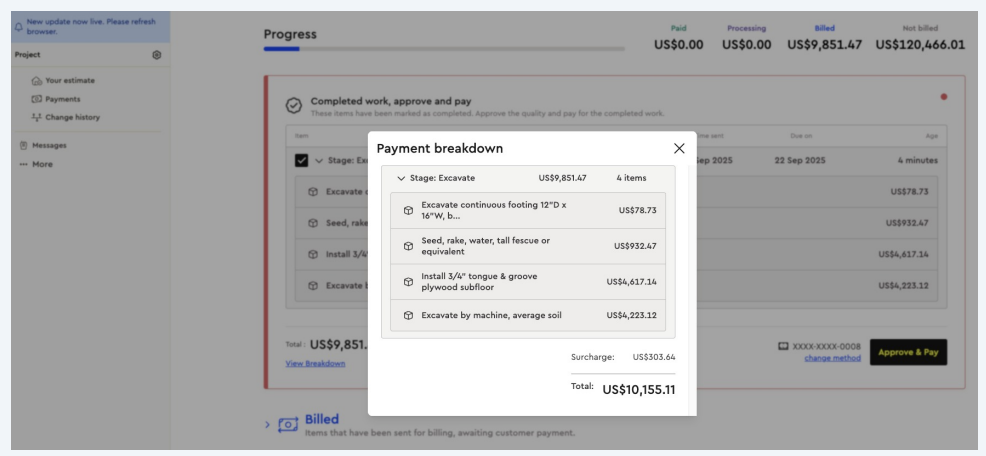
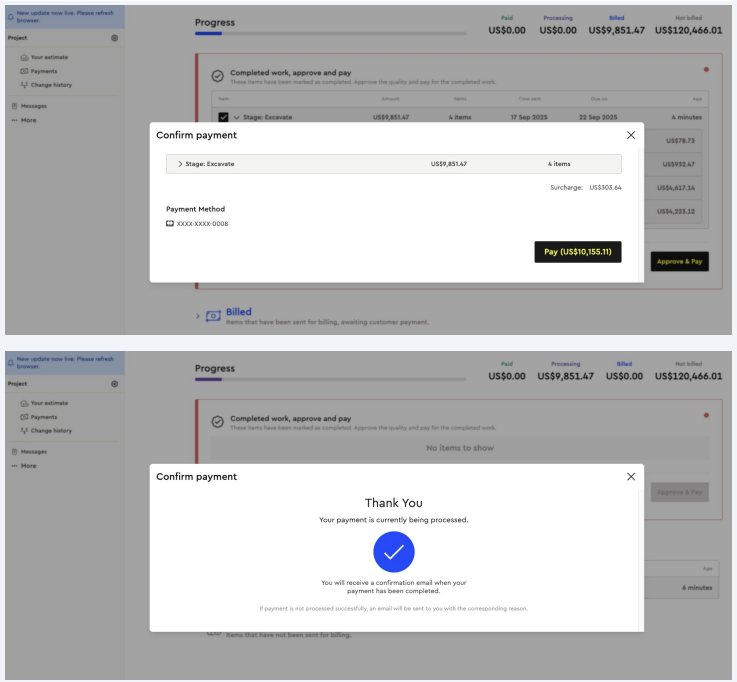
Once the client makes a payment through the Client Portal, it will be processed and marked as Paid.
Clients can easily see:
-
What has been paid
-
What is been processed
-
What is currently being billed
-
What has not yet been billed
This creates transparency for your clients throughout the project.
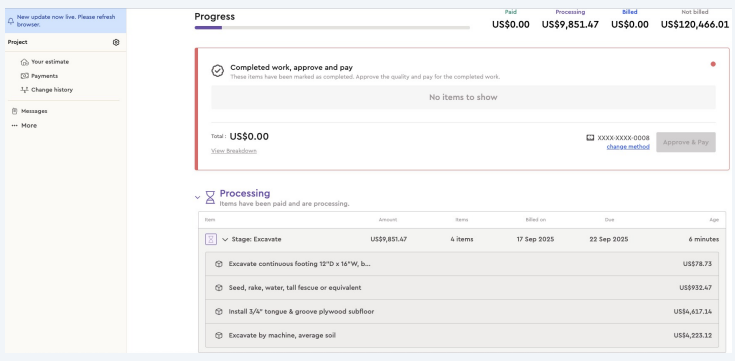
While the payment is being processed, you’ll receive a notification and can track its status on the Job or on your Financial Services dashboard.