![Untitled.png]](https://learn.bolsterbuilt.com/hs-fs/hubfs/Untitled.png?height=40&name=Untitled.png)
Prerequisites
-
A Bolster account with an active subscription
-
A Hover account with access to Marketplace Integrations
-
Administrative privileges on Hover to activate the integration
* Note: Multi-structure or multi-level properties are not yet supported.
Setup & Connection
-
Log in to your Bolster account.
-
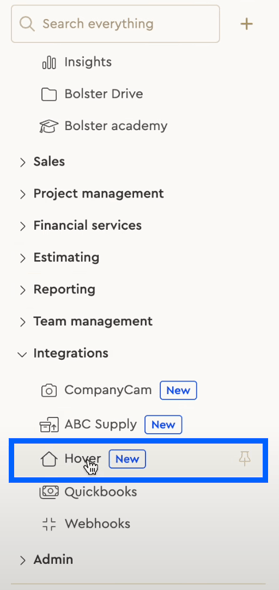
In the left-hand menu, click Hover.
-
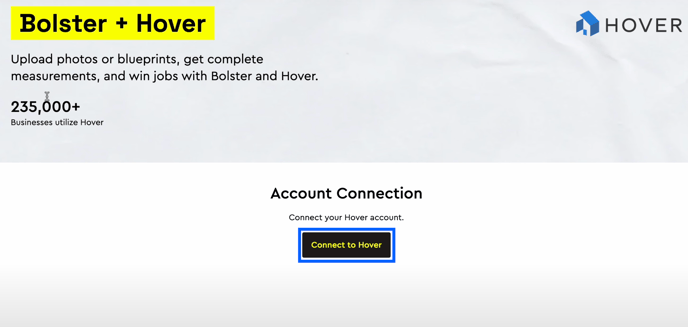
Click Connect to Hover.
-
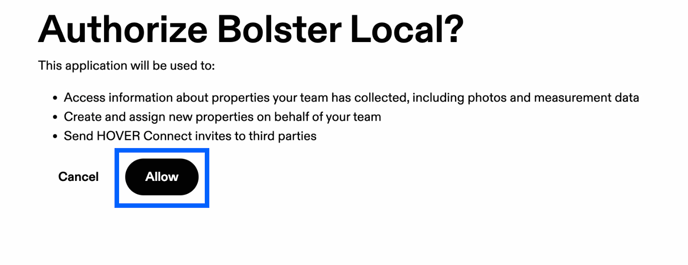
You'll be redirected to Hover—click Allow to grant access.
-
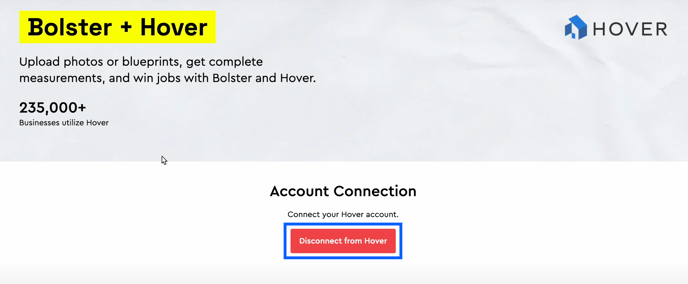
Return to Bolster; the button will change to Disconnect from Hover, confirming success.
Syncing Hover Data into Bolster
You can either create a new Hover job via Bolster or import data from an existing Hover job.
A. Creating a Hover Job in Bolster
-
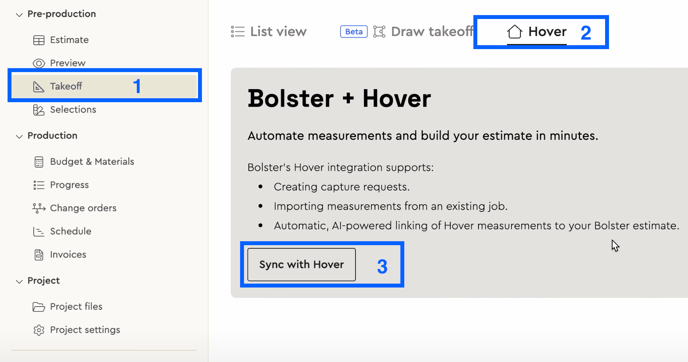
In Bolster’s Pipeline, open an estimate.
-
Click the Takeoff tab → choose Hover → click Sync with Hover.
-
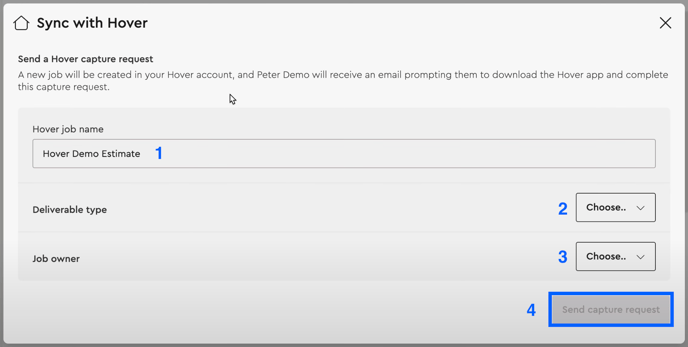
Select Capture request, then:
-
Name the job
-
Choose deliverable type
-
Assign a Hover job owner (person who takes photos)
-
-
Click Send capture request.
-
After job completion in Hover, return to Bolster to import measurements manually.
B. Importing an Existing Hover Job
-
In the same Takeoff tab in Bolster, click Sync with Hover.
.png?width=688&height=363&name=Screenshot%202025-06-05%20at%207.53.57%20PM%20(1).png)
-
Choose Existing job, then select from the list of completed Hover jobs.
-
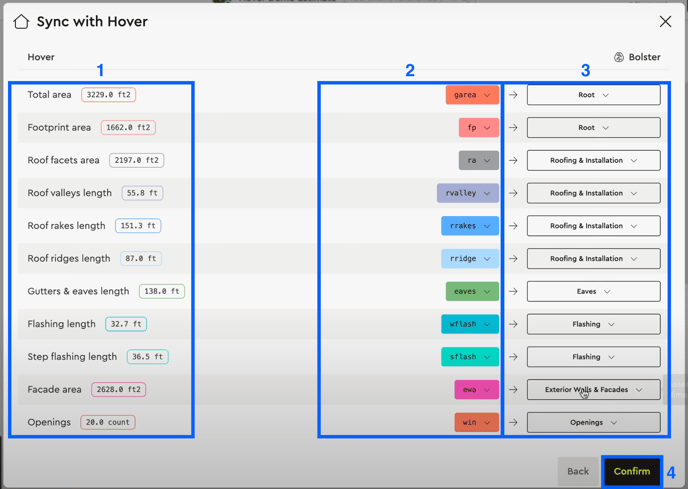
Bolster AI will attempt to match Hover measurements with your Bolster estimate.
-
Review the import interface:
-
Left column: Hover measurements
-
Center: measurement dimensions
-
Right column: Bolster assembly or estimate root
-
-
Confirm correct matches, then click Confirm.
-
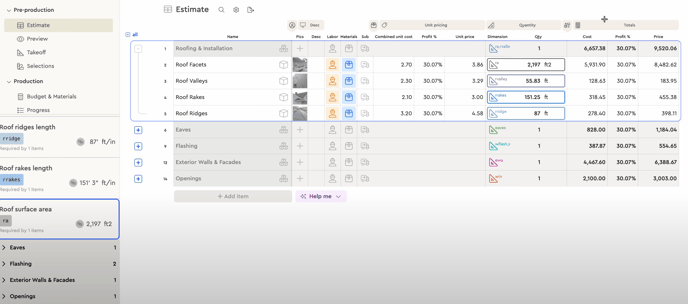
Back in the Estimate tab, quantity and pricing info will now be visible - no manual data entry required.
For more in depth usage, head to the next article: https://learn.bolsterbuilt.com/using-the-hover-integration