
What is Bolster Showcase?
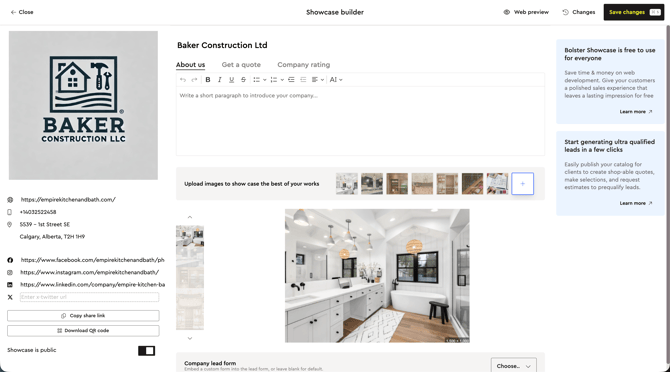
Your Showcase is a public page every contractor gets.
It includes 3 tabs:
-
Showcase profile (About us)
-
Open Quote (Get a quote)
-
Ratings (Company rating)
Open the Showcase builder
-
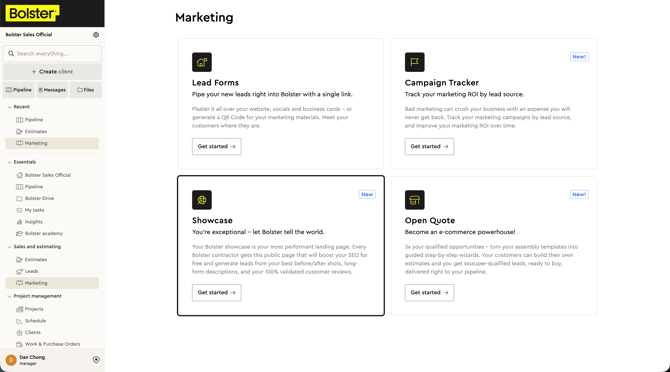
In Bolster, open the main left sidebar.
-
Click Marketing.
-
Click 'Get started' on the Showcase tile.
You’ll land in the Showcase builder.
Understand the page layout
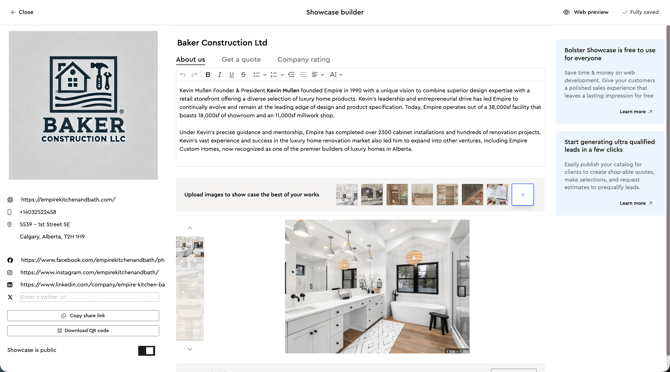
You’ll see 4 main areas:
-
Top bar
-
Tabs: About us, Get a quote, Company rating
-
Web preview (to view what clients will see)
-
Save status (you’ll often see “Fully saved”)
-
-
Left panel (your business details)
-
Website link
-
Phone number
-
Address
-
Social links (Facebook, Instagram, LinkedIn, X)
-
-
Main editor (your content)
-
About us rich text editor
-
Photo uploads and gallery
-
-
Sharing controls
-
Copy share link
-
Download QR code
-
Showcase is public toggle
-
Step 1: Turn your Showcase on (publish it)
Your Showcase only shows publicly when you publish it.
-
In the left panel, scroll to the bottom.
-
Turn on Showcase is public.
Use this as your final “go live” switch.
Step 2: Add your company details (left panel)
These details usually show on your public page as quick contact options.
-
Add your website URL.
-
Add your phone number.
-
Confirm your address.
-
Add social links you want customers to click.
What to write:
-
Website: the page you want leads to visit most
-
Phone: your best sales line
-
Social: only platforms you post on consistently
Ask yourself:
-
If a lead clicks only one link, which one should it be?
Step 3: Write your Showcase profile (About us tab)
This is the first tab on your public Showcase.
Use it to answer the questions every lead wants to know:
-
What do you build?
-
Who do you build for?
-
Why should they trust you?
-
What makes your process easy?
How to edit:
-
Click the About us tab.
-
Click into the large text box.
-
Write or paste your company story.
-
Use the formatting toolbar for headers, bold, and bullet points.
Simple structure you can copy:
-
One sentence on who you serve
-
3 bullets on what you specialize in
-
One short “process” section (how work starts)
-
One short “next step” (what the lead should do now)
Step 4: Upload your best project photos (gallery)
Photos do most of the selling.
In the About us tab, you’ll see a section to upload images.
-
Click the plus button in the photo row.
-
Upload before/after shots and finished project images.
-
Put your strongest images first.
Pick images that:
-
Look like the jobs you want more of
-
Show finished details (not messy in-progress shots)
-
Include wide shots and close-ups
Ask yourself:
-
Do these photos match the price point I’m trying to win?
Step 5: Share your Showcase link and QR code
You can share your Showcase in a few clicks.
-
Click Copy share link to paste it into:
-
Your Instagram bio
-
Your Google Business Profile
-
Email signature
-
Sales follow-up emails
-
-
Click Download QR code for:
-
Yard signs
-
Jobsite signage
-
Trucks and trailers
-
Business cards
-
Brief overview: Get a quote tab (Open Quote)
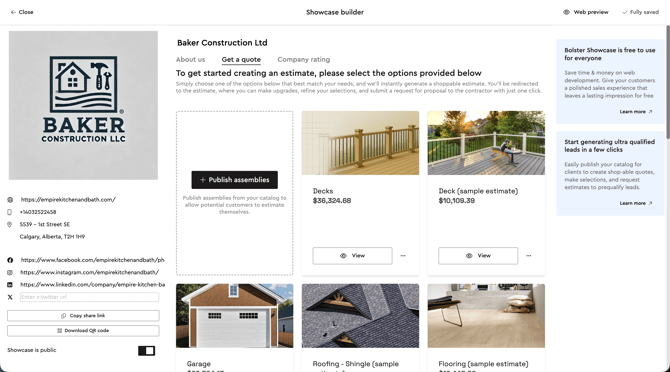
This is where clients can start a request by browsing published options.
You’ll manage this content in the Get a quote tab.
For now:
-
Treat it as your “catalog + quoting” tab
-
Plan to set it up after your About us and photos
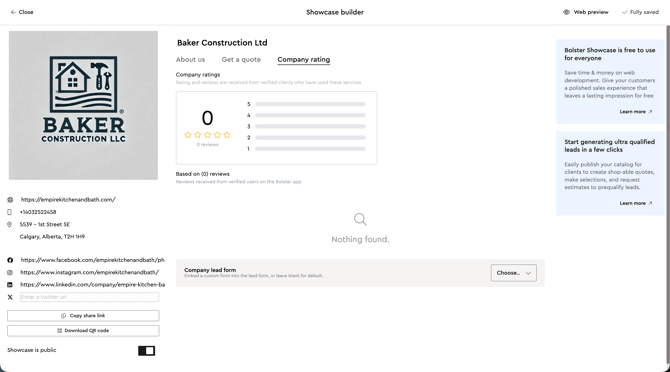
Brief overview: Company rating tab (Ratings)
This tab shows your rating summary and review distribution.
You may also see a Company lead form dropdown here.
-
Use it to choose what lead form powers your Showcase flow.
-
Leave it blank to use the default form.
Quick setup checklist
Do these first:
-
Turn on Showcase is public
-
Add website, phone, address
-
Add About us copy
-
Upload 10–20 strong photos
-
Copy share link and start using it everywhere
Then do these next:
-
Set up Get a quote (Open Quote)
-
Confirm Ratings and lead form selection