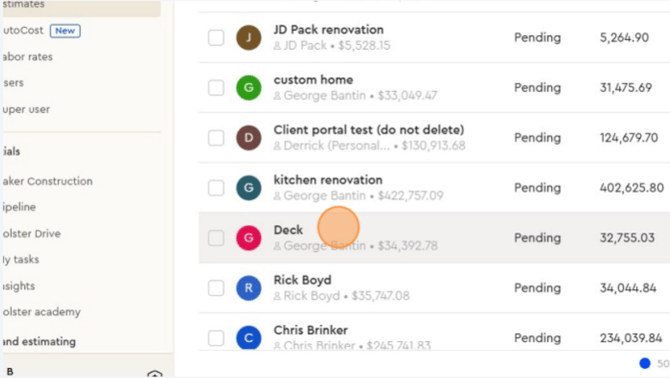
1. Click on the estimate you want to view
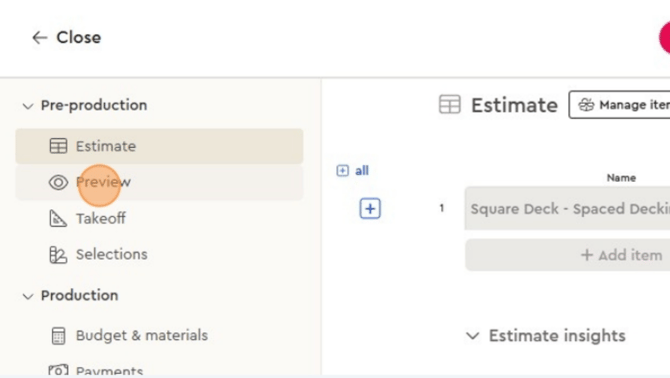
2. From there, you click on the preview because this will take you to the estimate preview.
3. This is viewing it as your customer would then click "Edit proposal".
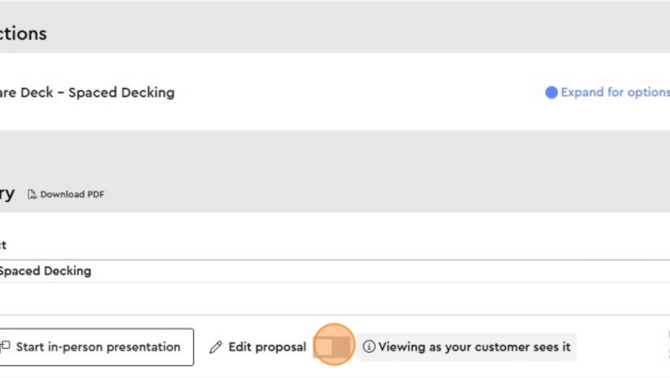
4. This will enable settings on the estimate and a setting bar will appear
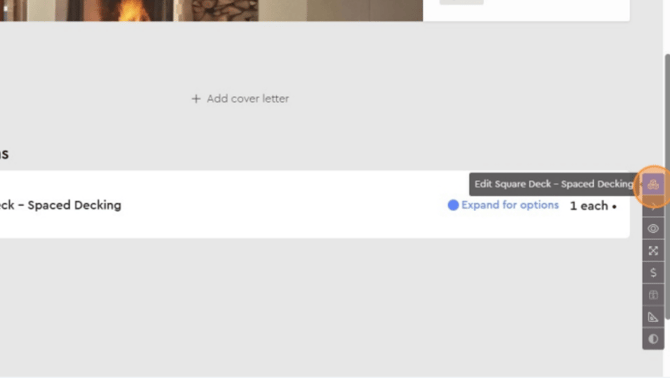
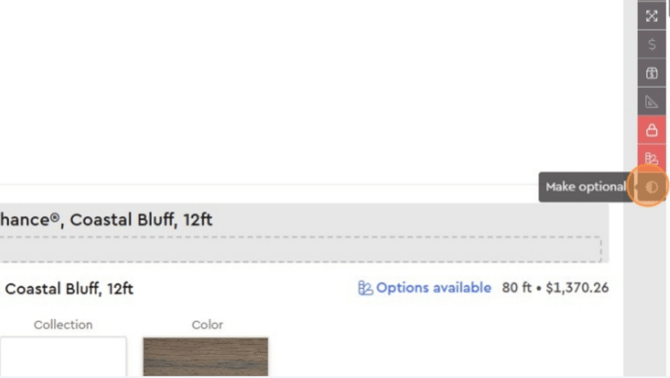
5. You'll notice there are various actions you can select to change what appears on the estimate for your customer.
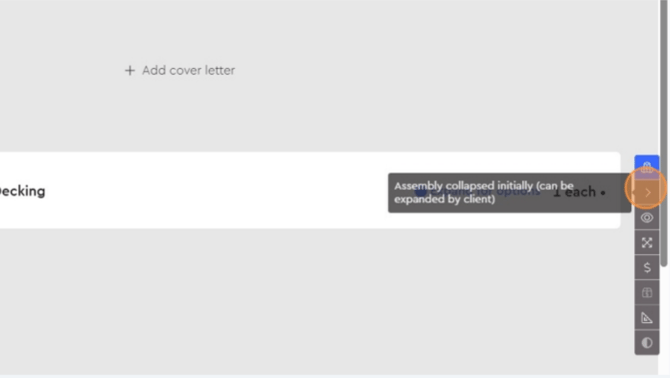
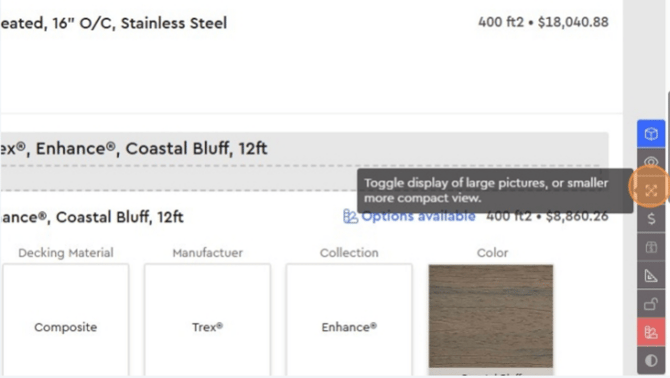
6. Toggle display changes image size on the estimate
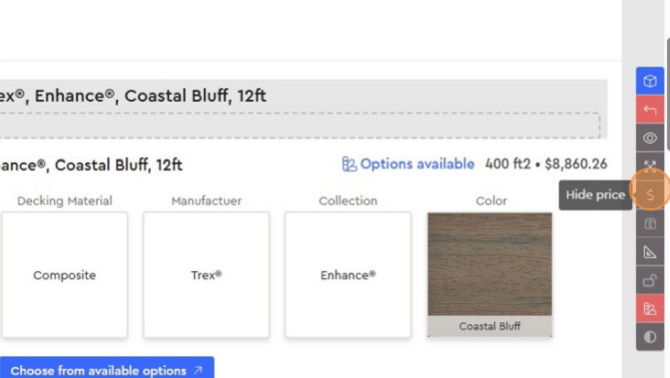
7. Hide/show price
8. Hide/show rate
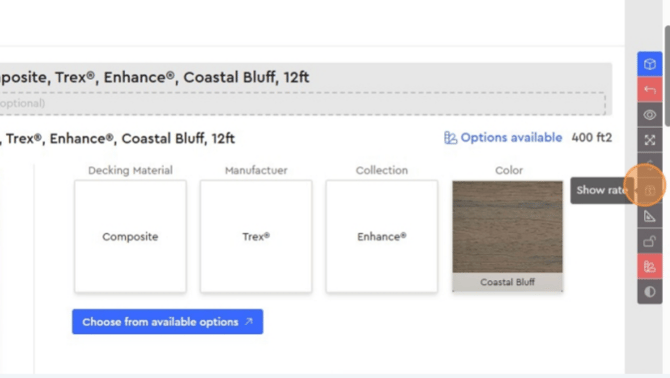
9. Hide/show item quantity
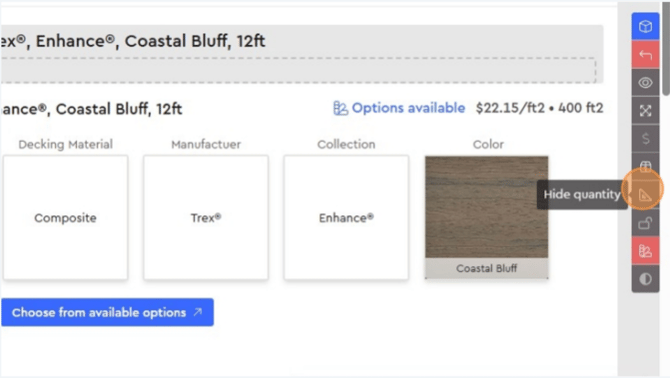
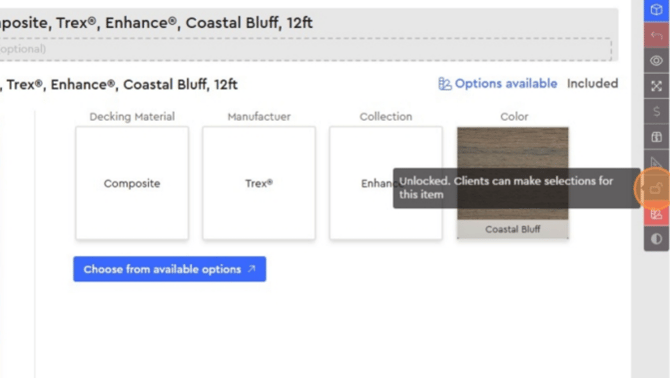
10. Unlocking/locking item selection for your customer
11. Removing default selection enables your customer to make selections from scratch
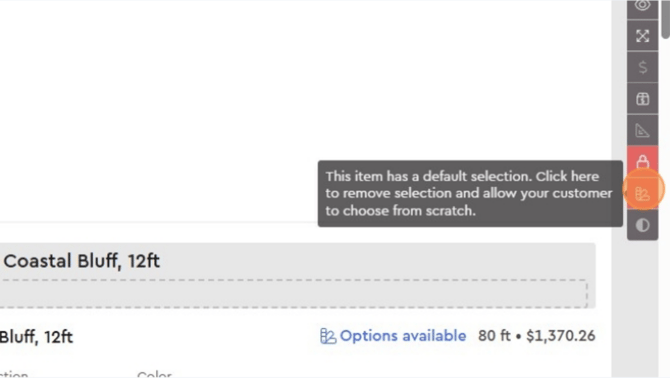
12. This will make selections optional for your customer