
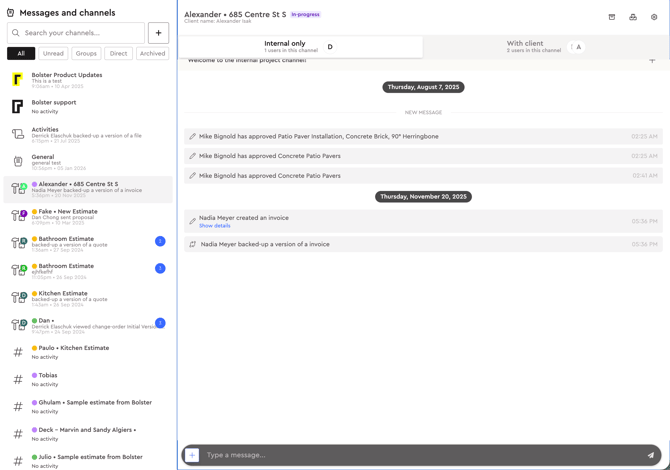
Creating a channel
-
Click the + button
-
Bolster opens a settings modal
-
Enter a channel name
-
Example: 123 Oak Lane – Client
-
Example: 123 Oak Lane – Internal
-
-
Select company members
-
Choose the teammates who need access
-
-
Select client members (if needed)
-
Add the client contacts who should see and participate
-
-
Save to create the channel
Editing a channel
-
Open the channel you want to update
-
Click the gear icon in the top right
-
Bolster reopens the same settings modal
From here, you can:
-
Rename the channel
-
Add members
-
Remove members
-
Company members
-
Client members
-
Save your changes when you finish.
Searching for channels
-
Go to the search bar in the top left
-
Type a channel name or keyword
-
Select the channel from the results to open it
-
Clear the search to return to your full channel list