
White Label Enhancements:
What’s new?
- Your uploaded company logo will now replace the Bolster logo in the top-left corner, creating a more personalized experience.
- Square logos will display colored side padding, which can be customized to your brand colors.
- This setting is company-specific (not user-specific).
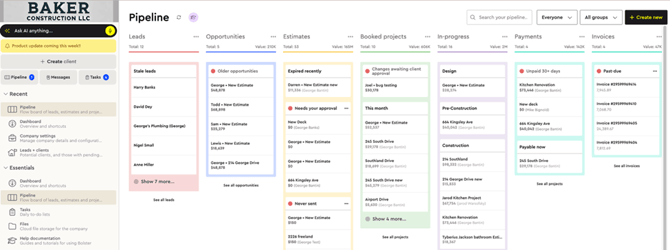
Video: Introduction to White Labelling Feature in Bolster Company Settings
Navigation Improvements
What’s new?
- Updated sidebar navigation for a cleaner, more intuitive experience.
- New Recent tab for quick access to your most recently used pages and projects.
- Sales & Estimating has been renamed to CRM.
- The previous Estimate Header is now Price Book, where you can manage:
- Item & assembly libraries
- Labor rates
- Custom dimensions
- Tax rates
- Company Settings has moved to a new Settings section to make room for the AI search bar.
- Additional fields are now available, including:
- Client payments
- Invoices
- Construction stages
- Fully redesigned Work & Purchase Orders section:
- Centralized access to work orders, purchase orders, bills, and expenses
- Enhanced financial visibility across all projects
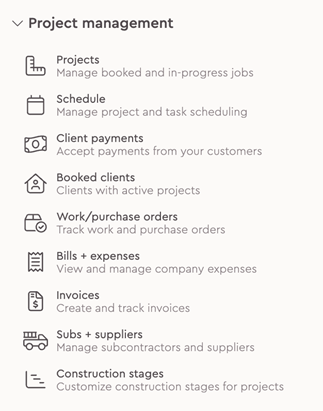
AI Search (Bolton)
- The legacy search bar has been replaced with Bolton, our new AI-powered search agent.
- Bolton helps you quickly locate pages, projects, and features, and guides you on how to use the software.
- In future releases, Bolton will expand to assist with building estimates.
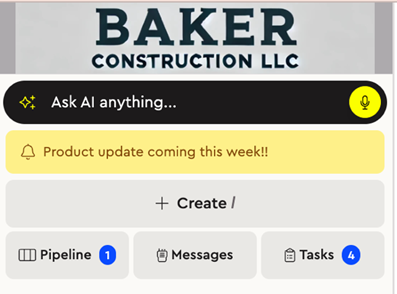
Video: How to use AI Search (Bolton)
User Dashboard
What’s new?
- Brand-new dashboard design with:
- A Tasks section showing daily assignments, priorities, and allotted time
- Improved visibility to keep projects on schedule.
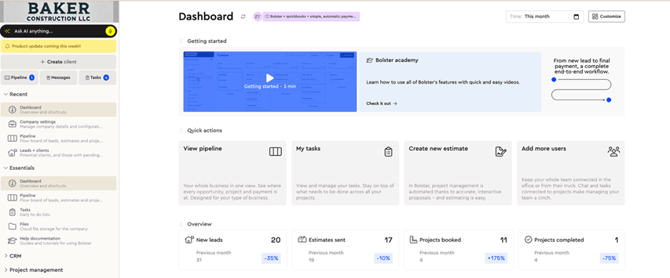
Task Related Videos:
-
Introducing the New Tasks Feature for Enhanced Project Management:
-
Opening projects up directly from tasks page:
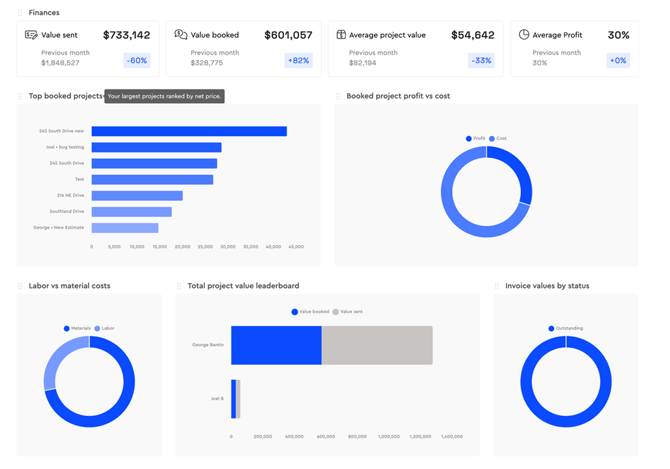
Insights are now displayed directly on the dashboard for quick access to key business metrics.
-
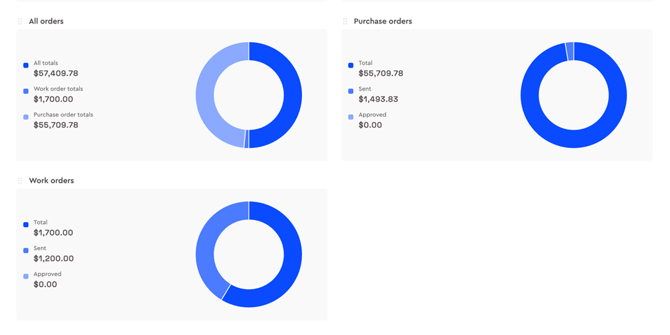
- New statistical graphs showing:
- Total order value
- Paid vs. outstanding amounts
- Breakdown by work and purchase orders
- New statistical graphs showing:
Estimating Enhancements:
What’s new?
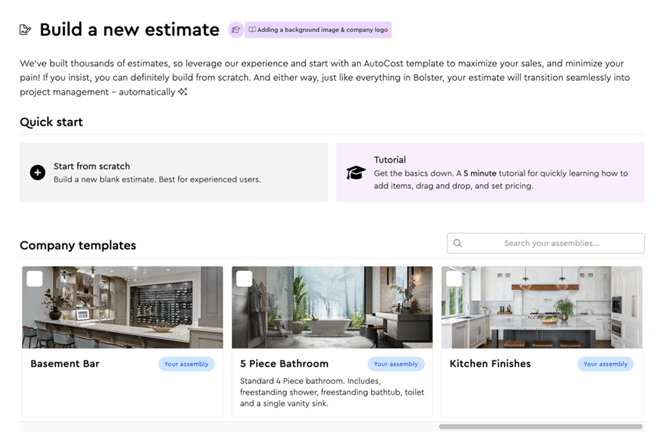
- Fully revamped Build Estimate page for faster and more intuitive estimating.
- Frequently used assemblies now show on this list and can be added quickly to any new estimate.
Ability to select and add multiple assemblies at once.
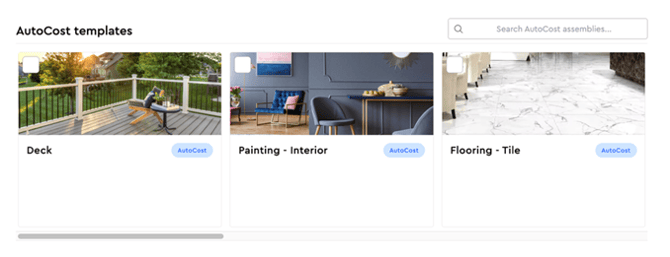
- AutoCost assemblies can now be added directly.
Video: Introducing the New Build Estimate Page for Proposals:
Estimating Sidebar
- New sidebar with:
- Project-specific pages (Left Picture Below)
- Company-level navigation dropdown (Right Picture Below)
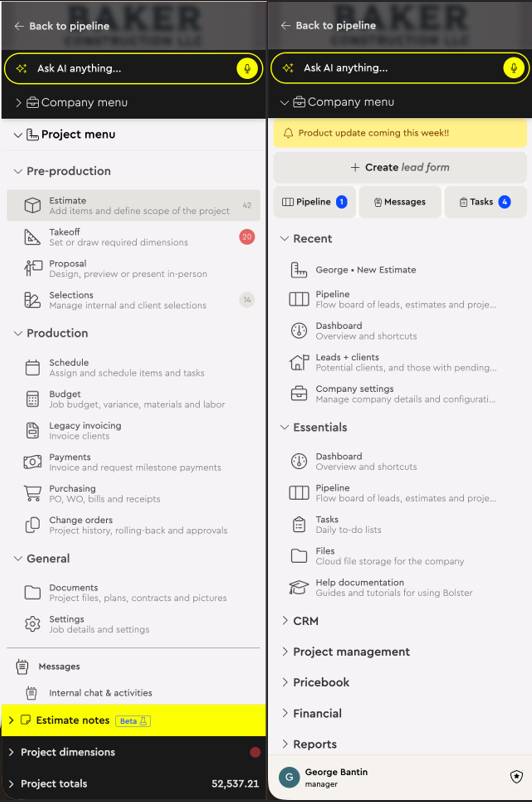
Video: Estimating Sidebar Navigation
Upgrades & Add-Ons:
What’s Changed?
- Removed three outdated sample options.
- Simplified editing with clearer edit, delete, and duplicate actions.
- New upgrades start as a blank item and no longer inherit previous names.
- Base item is now visible alongside all upgrades for easier comparison.
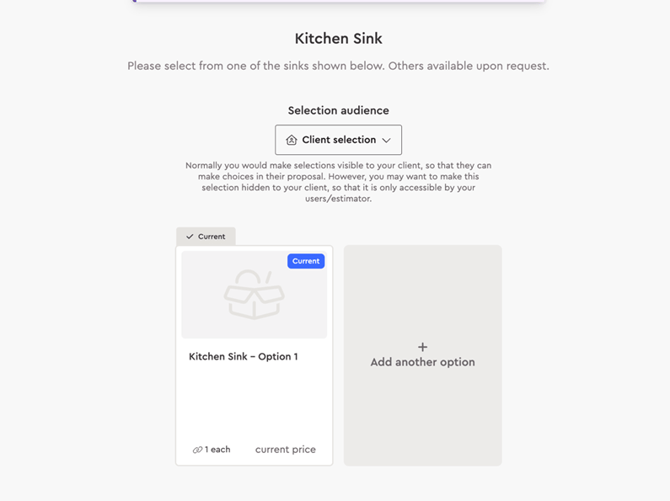
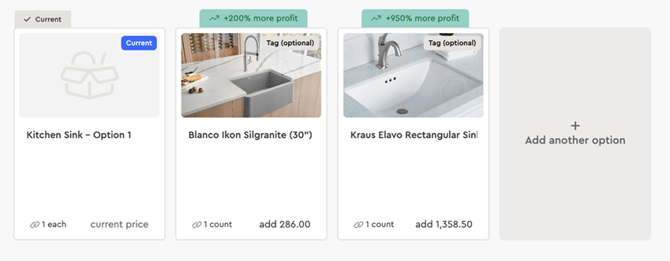
Video: Guide on building a simple upgrade.
Upgrade Tags:
The ability to create custom upgrade tags allows you to highlight specific items and clearly communicate where a product falls within a tiered range, such as good, better, or best.
This recommended feature adds greater depth and transparency to proposals, helping homeowners better understand their options and make informed decisions.
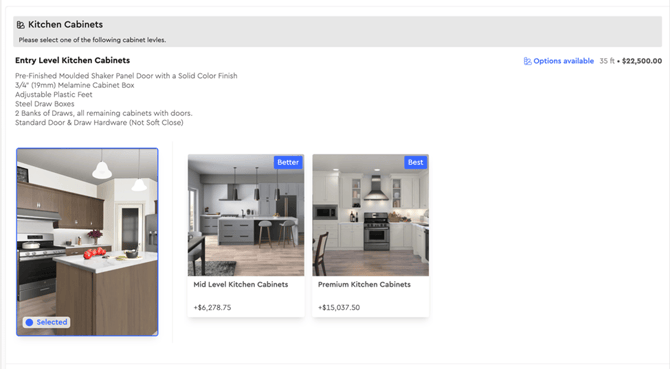
Video: How to Add Tags to Your Upgrades
Item Cost Calculation Improvements
- When removing labor or materials from an item, the associated cost is now removed instead of being reallocated.
- Example:
- Labor: $100 | Materials: $100 → Total: $200
- Removing materials now correctly updates the total to $100
Video: Understanding Item Pricing in the System
Client Notifications & Activity Tracking
- Improved client notifications and activity tracking:
- See if emails were opened
- Track clicks on proposals and invoices
- Identify failed email deliveries
One of the new features within the Estimate tab is an enhancement to the existing chat system. This update provides significantly more detailed visibility into customer activity, including indicators such as when a customer opens an email, views a proposal, or views an invoice.
Additionally, if an email address is incorrect or a message is not delivered, the system will clearly indicate that the customer has not received the email or proposal. This ensures you always have clear, real-time insight into the customer’s status and engagement at every stage.
Budget, Orders & Expenses
Budget Tab
- Materials and labor columns have been restored, provides greater clarity, control, and accuracy throughout the life of a project. A clear breakdown allows you to see exactly where money is being spent. Understanding how much of the budget is allocated to materials versus labour helps eliminate guesswork and builds confidence when reviewing project costs. Once actual costs are filled in, this will help provide you real time data to adjust costs if required on future projects.
Purchase Orders & Work Orders
New functionality includes:
- Estimate based pricing is used by default but pricing can be overwritten for each line item. Functionality will be coming shortly to allow for the total order price to be manually entered. This will be tied to RFQ’s.
- Item images included
- Option to hide pricing (ideal for internal orders)
- Option to hide descriptions
Videos:
Creating standard & manual purchase orders
Materials Tab
- Two tables merged into one for improved navigation, filtering, and column resizing.
Expenses
- Bug fixes and improvements for adding expenses manually or via AI.
Payments & Invoicing
- Manual approval now available for previously booked projects.
- Latest approved proposal is shown to the homeowner for final approval before invoicing.
- Continued improvements to progress payments.
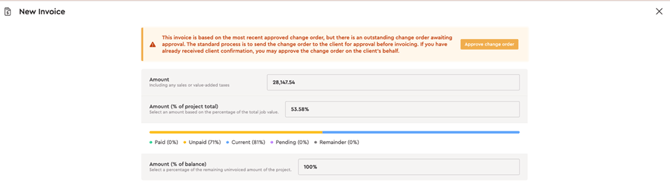
Video: Manually Approving Change Orders in Proposals
Media & File Uploads
- System warnings now appear when uploading unsupported image formats.
- Supported formats: JPEG and PNG
Image Conversion Tips
- Mac: Right-click on image → Scroll down to “Quick Actions” → Convert Image.
A module will pop up with two dropdowns; the first one provides the formats that you can convert the image to and the 2nd one is the image size. It is recommended to keep the actual size of the image. Once converted, a new image file will be created. Find this image and upload to Bolster.
- Windows: Open in Photos → Save As → Select new format. Once converted, a new image file will be created. Find this image and upload to Bolster.
- Online image converters may also be used.
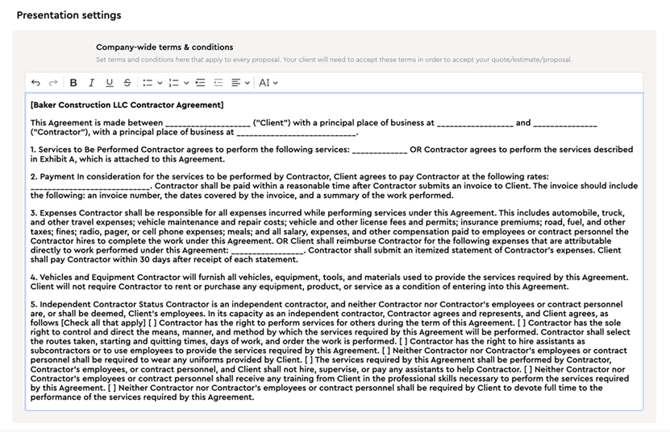
Rich Text now available for:
- Terms & Conditions (company-wide and theme-specific)
- Cover letters
Additional Improvements
- User access warning when login fails due to no internet connection
- Improved PDF text contrast for better print visibility
If you have any questions or would like help exploring these new features, please reach out to our support team.