
What You Can Do in Bolster Drive
Bolster Drive lets you:
✔ Upload files (PDFs, images, plans, contracts)
✔ Create folders to organize documents
✔ Search and navigate files quickly
✔ Keep files linked to your projects and teams
Files uploaded here are accessible project-wide from any device.
Accessing Bolster Drive
-
Log in to Bolster via the web app or Bolster interface.
-
Look at the left-side menu and click Files or Bolster Drive under Essentials.
-
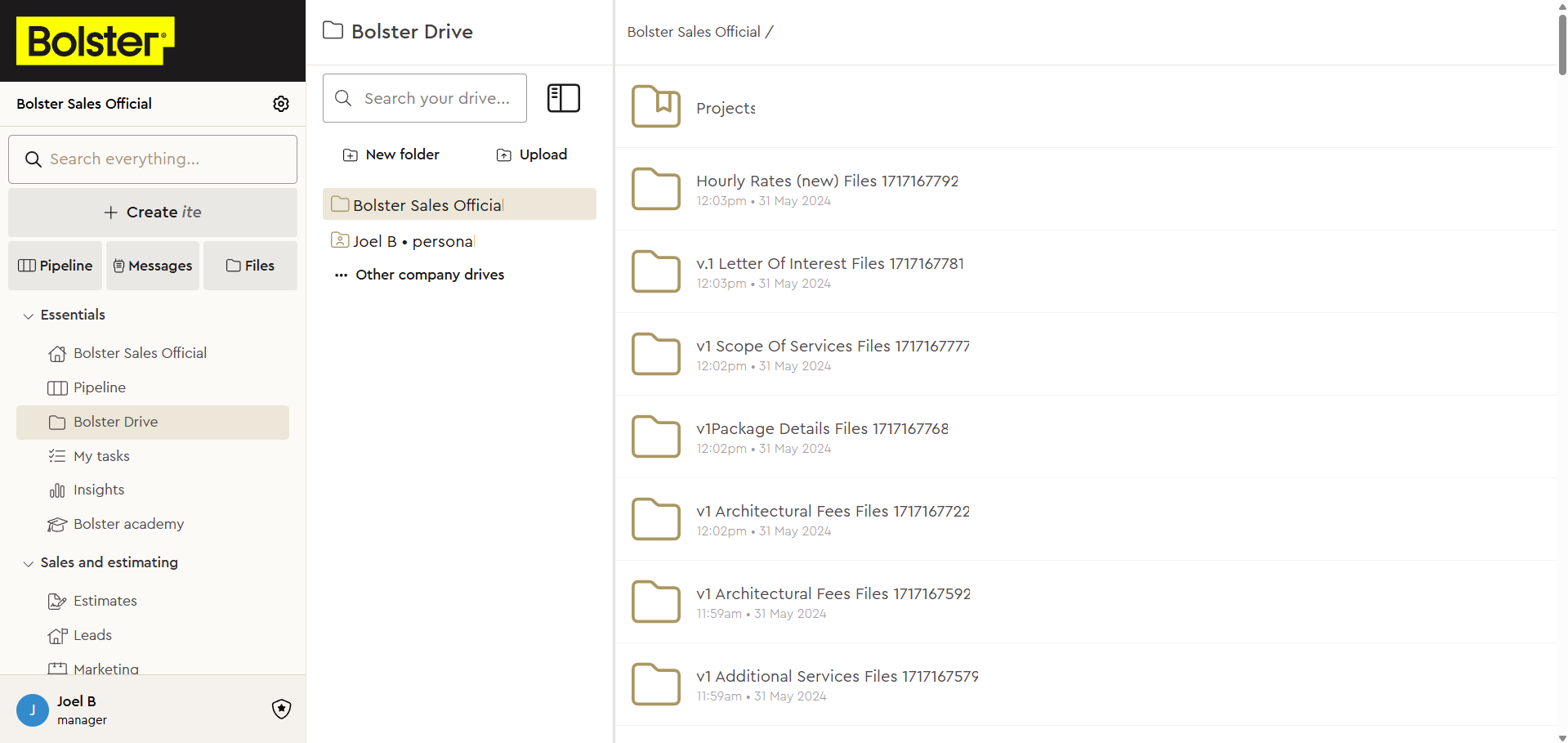
In your screenshot, this is the highlighted Bolster Drive tab.
-
You may also navigate from the Search bar at the top of the sidebar.
-
Main Bolster Drive Layout
Once you open Bolster Drive, you’ll see:
Sidebar Navigation
-
Drive Home – Your top-level files area
-
Your personal drive – Files you’ve personally created or uploaded
-
Other company drives – Shared/other company spaces
Search Bar
Use the search field at the top to find files or folders quickly by name.
Folder & File View
The main panel shows your folders and files. In your screenshot, you see folders like:
-
Projects
-
Hourly Rates
-
v1 Letter Of Interest
Each entry shows the upload time and date.
How to Create Folders
-
Click the New folder button in the top toolbar of the Drive.
-
Type a clear, descriptive name for the folder (e.g., “Estimates 2025”, “Signed Contracts”).
-
Press Enter to save.
-
Use folders to group related docs (e.g., project plans, permits, owner agreements).
-
Upload Files
-
Click Upload near the top of the Drive view.
-
Select files from your computer (multiple files can be selected at once).
-
Files upload to the current folder you are viewing.
-
Large files like plans or PDFs may take longer depending on size.
-
Finding Files
Use the Search Bar
Type a file name or keyword to locate documents anywhere in your drive quickly.
Browse by Folders
Navigate folders in the left-hand panel to locate files by category or project.
Linking Files to Projects
Bolster Drive is structured so you can keep project-related documents organized. Though not shown in your screenshot, Bolster Drive conceptually connects with your Projects list in the main Bolster interface.
For example:
-
Upload project scope docs to a “Projects” folder
-
Add client contracts to a “Contracts” folder
-
Store site photos with project images
Use consistent naming conventions to keep files easily searchable.
Best Practices for Bolster Drive
✔ Name folders/project files consistently
e.g., “Project – Jones Residence – Drawings”
✔ Keep a folder per major project
Helps teammates find documents fast
✔ Use search before creating new folders
Reduces duplication
✔ Keep all contracts, estimates, and client docs here
So they’re always available in one place
File Visibility & Permissions
Files in the company drive are accessible to team members with access to that Bolster workspace.
-
Personal files are separate from company-wide files.
-
Files upload permissions may vary depending on your role (Admin vs member).